Player Takeaway Camera: LED Colour Guide Follow
Introduction
This article provides information on the meaning of the Status LED indicator on the front of the Ubiquity G3 Flex camera and the Reolink CX820 camera.
Ubiquiti G3 Camera LED Guide
The Ubiquity Quickstart Guide has some LED status indications, but as these cameras are operating in a standalone mode (without a Unifi Protect Controller) below is an updated status indication reference guide, specifically for their use in the Zero Latency System.
| LED State | Status | Notes |
| Alternating White/Blue | The device is busy; do not touch or unplug it. This usually indicates that a process such as a firmware upgrade is taking place. | No change |
| Steady Blue | Connected to Controller; Reset Button Pressed | This state will never be seen as the cameras will be operating in standalone mode, without the use of a Ubiquiti Protect Controller |
| Flashing Green | Disconnected from Controller | This state will never be seen as the cameras will be operating in standalone mode, without the use of a Ubiquiti Protect Controller |
| Steady White | Awaiting adoption | This will be the initial state when the camera is initially connected to the PoE switch, but has not yet been configured as per the “How to Configure the Ubiquiti G3 Flex Camera in the Player Takeaway Hardware Kit” article |
| No Light |
No power/connection to switch or The camera is connected and has been configured correctly |
If the LED is off, the camera may not be connected to the switch, or the camera has been correctly configured in standalone mode. as per the “How to Configure the Ubiquiti G3 Flex Camera in the Player Takeaway Hardware Kit” article. To check the switch connection, check the switch port that the camera is connected to. Standard Port Connections The LED indicator on each switch port with a camera connected should be Orange |
| Steady Red | Camera is recording |
The RED Led will show when the RTSP stream from the camera is actively recording. This should occur as soon as the “start game” button is pushed on the GM machine (for content that supports the player take away video). |
Reolink Camera LED Status
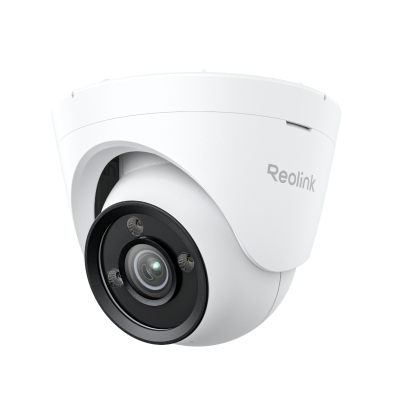
The following guide outlines the Reolink camera LED status indicators for systems operating within the Zero Latency environment.
| LED State | Status | Notes |
| No Light |
No power/connection to switch or The camera is connected and has been configured correctly |
Unfortunately, There is no LED indicator light for the Reolink camera. This means that the easiest way to confirm that its working is to use the camera setup view within the Launcher on the GM.
Alternatively, you can check the lights on the Meraki Network switch. Standard Port Connections The LED indicator on each switch port with a camera connected should be Orange |
Article Keywords/Phrases:
LED
Camera Troubleshooting
Status
Camera LED
Camera Status
Ubiquiti G3 Flex Status
Reolink CS820
Comments
0 comments
Article is closed for comments.