Support Overview Follow
Introduction
The Support page forwards you to the Knowledge Base (to training material) and to the Ticketing system (to contact Zero Latency Client Services).
Who can use this feature?
Any user that has access to the Zero Latency Portal can use this feature.
If you do not have an account, please speak to your Operations Manager.
How do I access the "Support" page?
How do I log into the Knowledge Base?
How do I use the Knowledge Base?
How can I log a ticket to Zero Latency Client Services?
Training Videos
- Click on the play button to watch the Support Overview video
Info
To view the chapters and timestamps, please watch this video directly on YouTube.
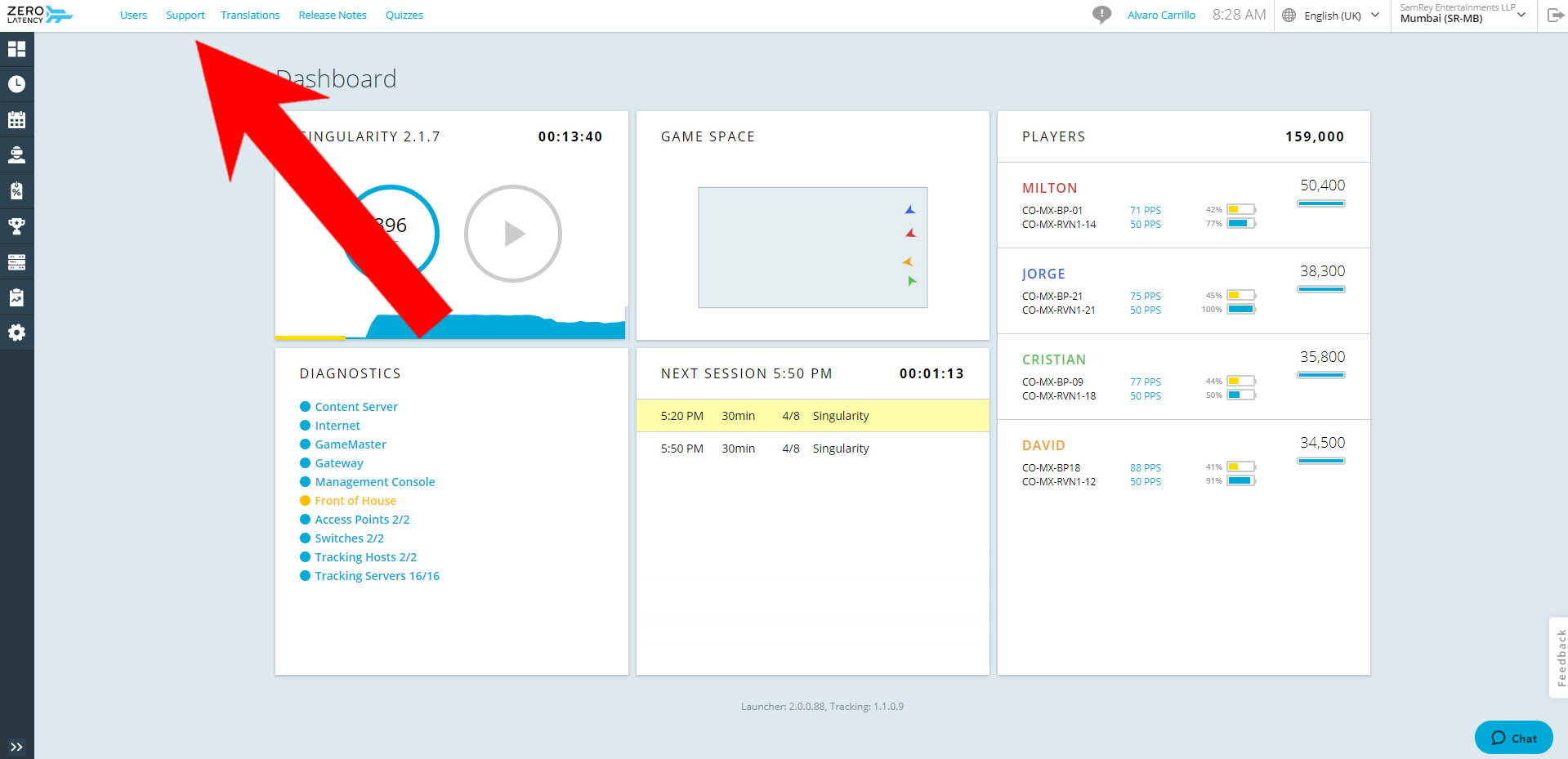
How do I access the "Support" page?
- Click on the "Support" link.
How do I log into the Knowledge Base?
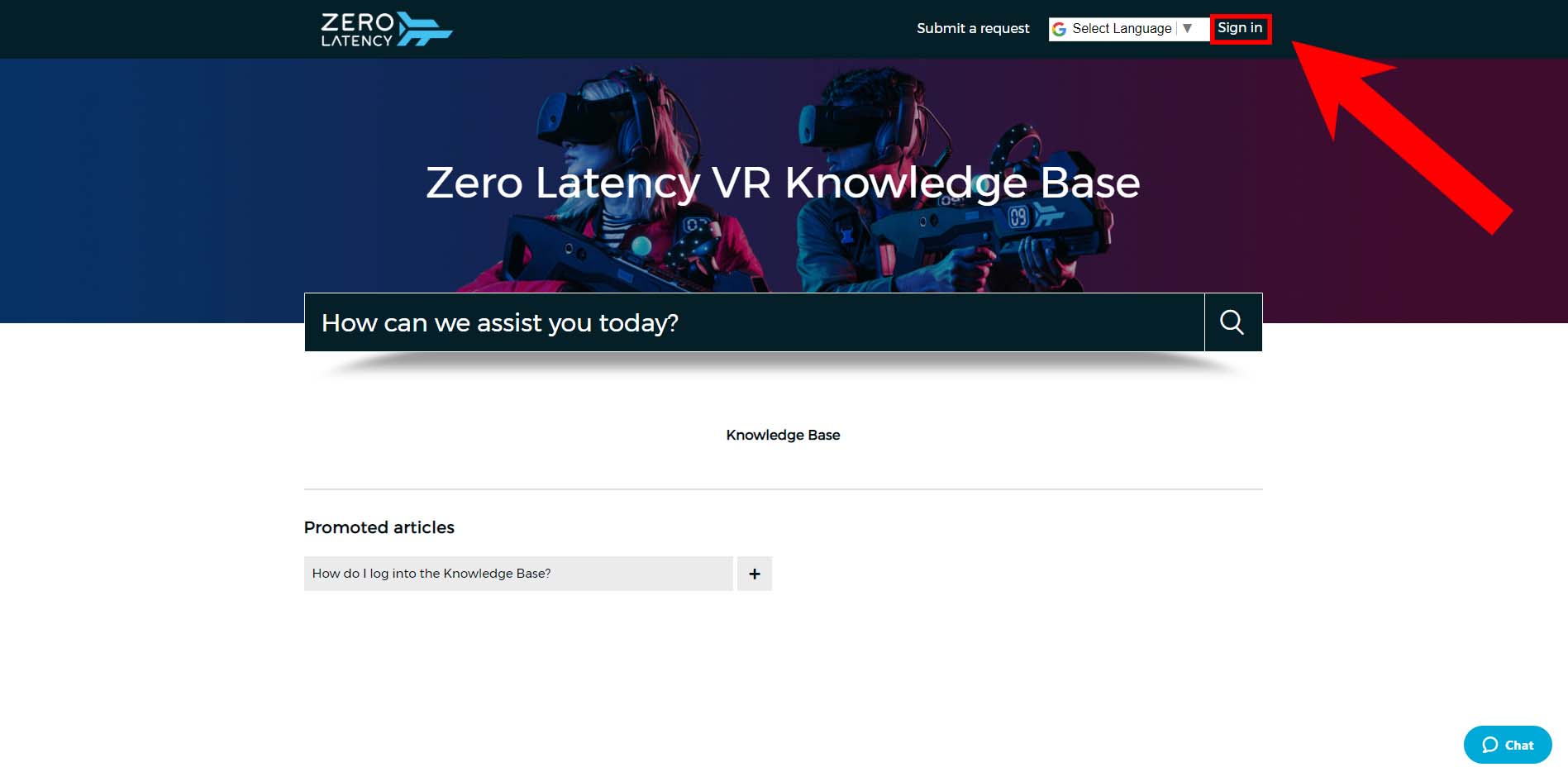
If you have an account, follow the steps below:
- Click on the "Sign-In" button.
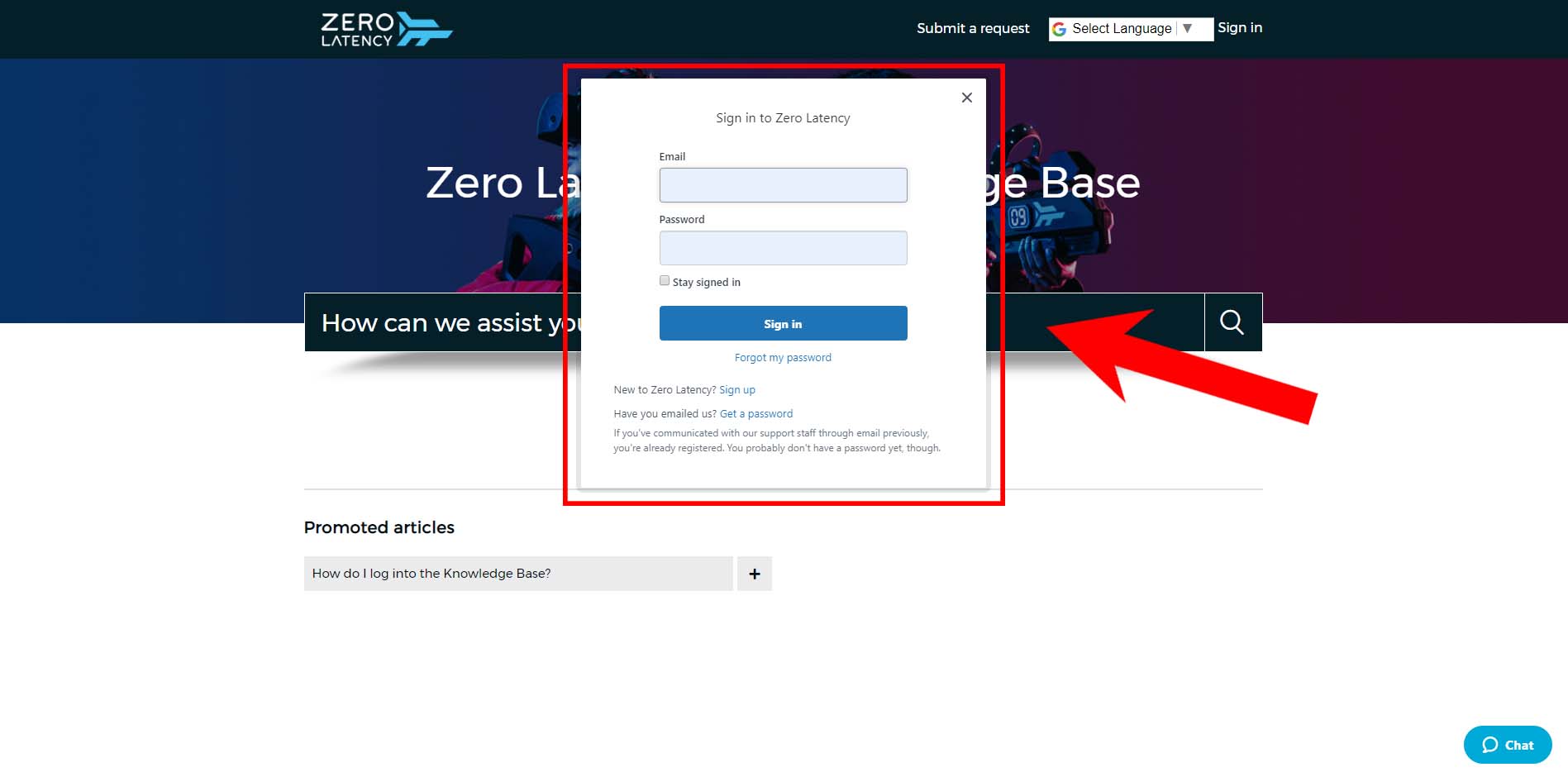
- Enter your username, password and click the "Sign In" button.
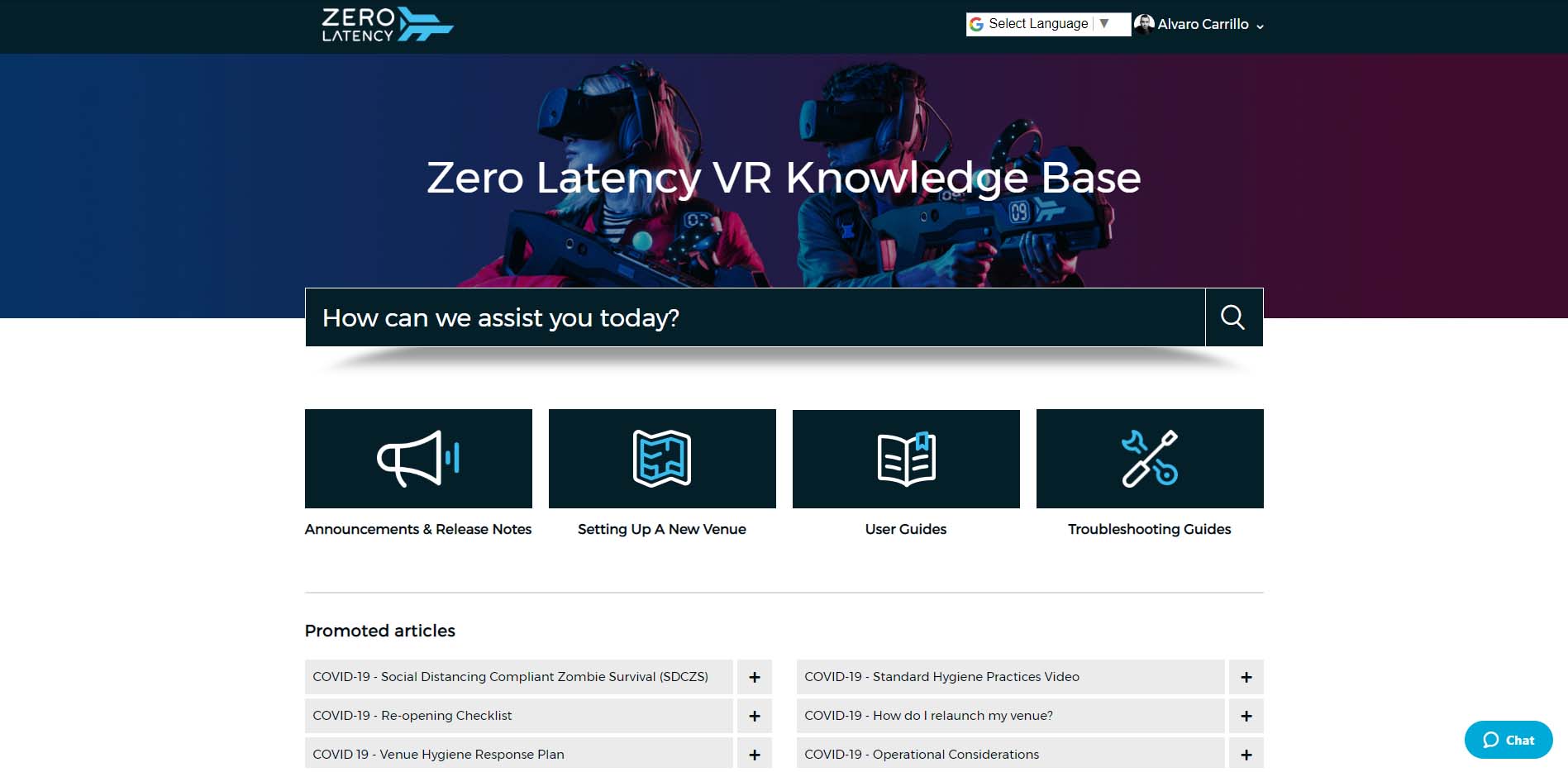
- You will now have access to the Knowledge Base.
How do I use the Knowledge Base?
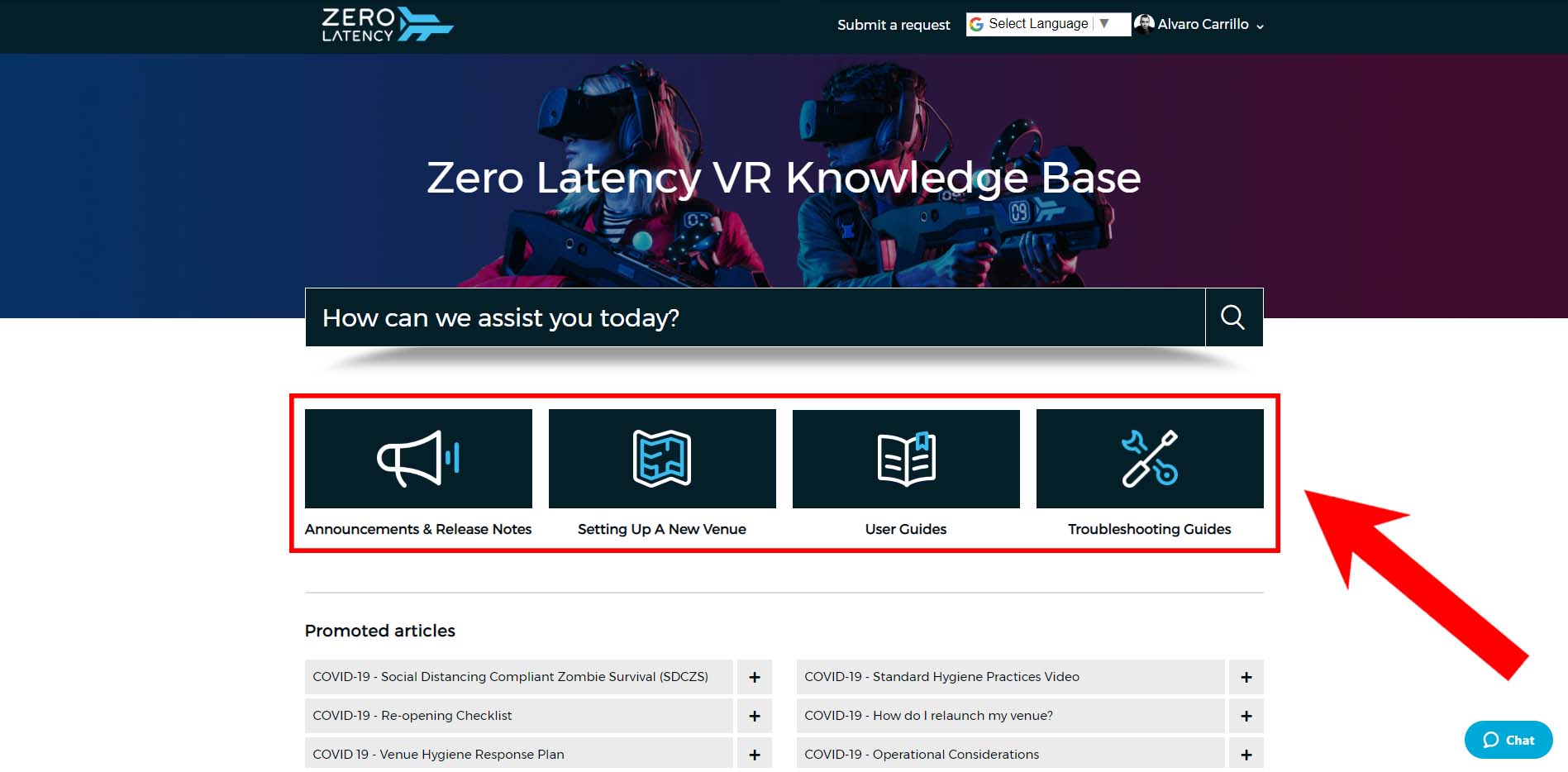
- Depending on your level of access, you will see different categories on the home page.
| Category | Description |
| Announcements & Release Notes | Includes Announcements and Release Notes. |
| Setting Up A New Venue | Includes Prepare Your Venue, Install Your System and Train Your Team. |
| User Guides | Includes All the User Guides. |
| Troubleshooting Guides | Includes all the Troubleshooting Guides and Contact Support. |
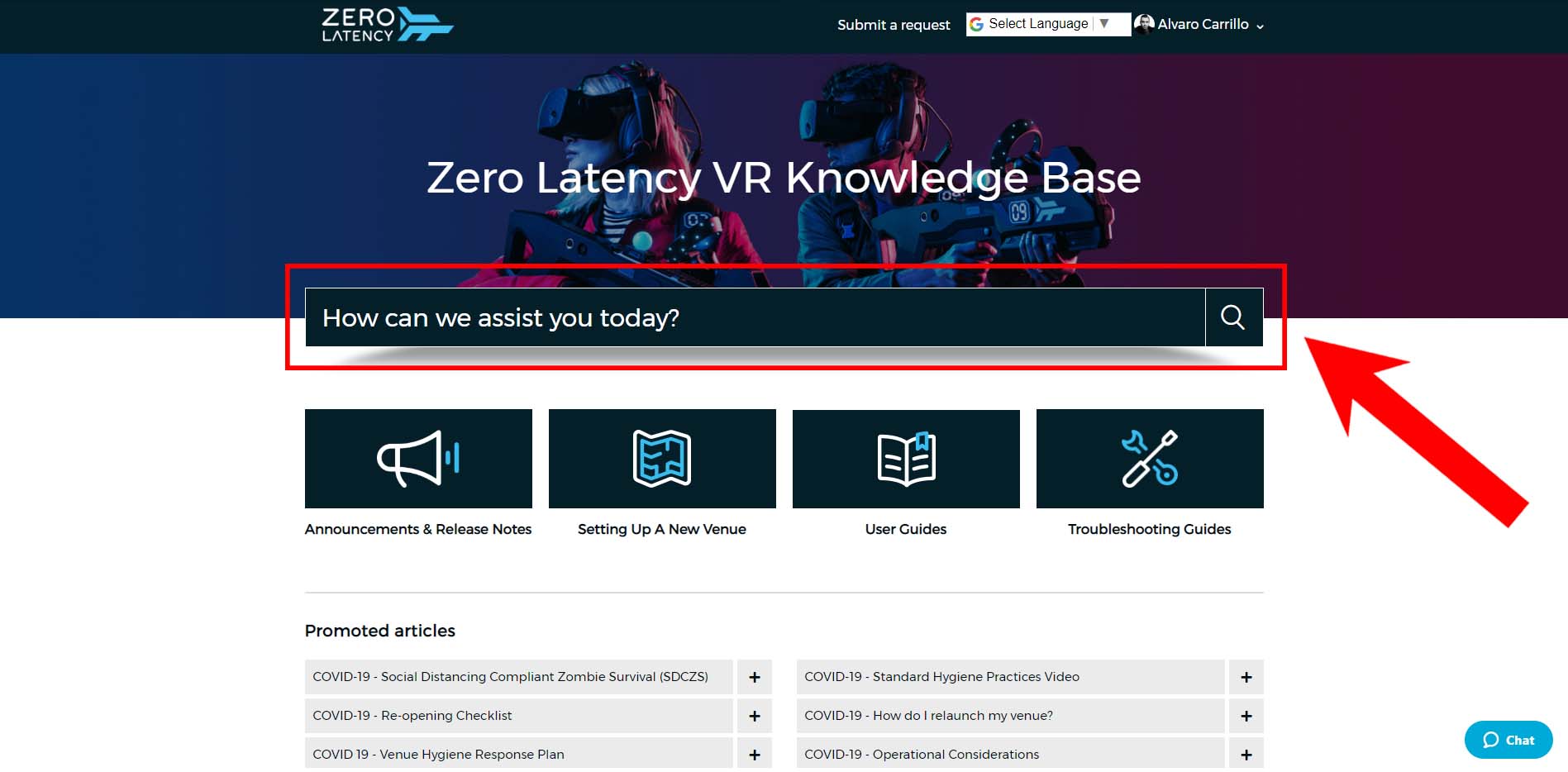
- You can also search for an article using the search bar.
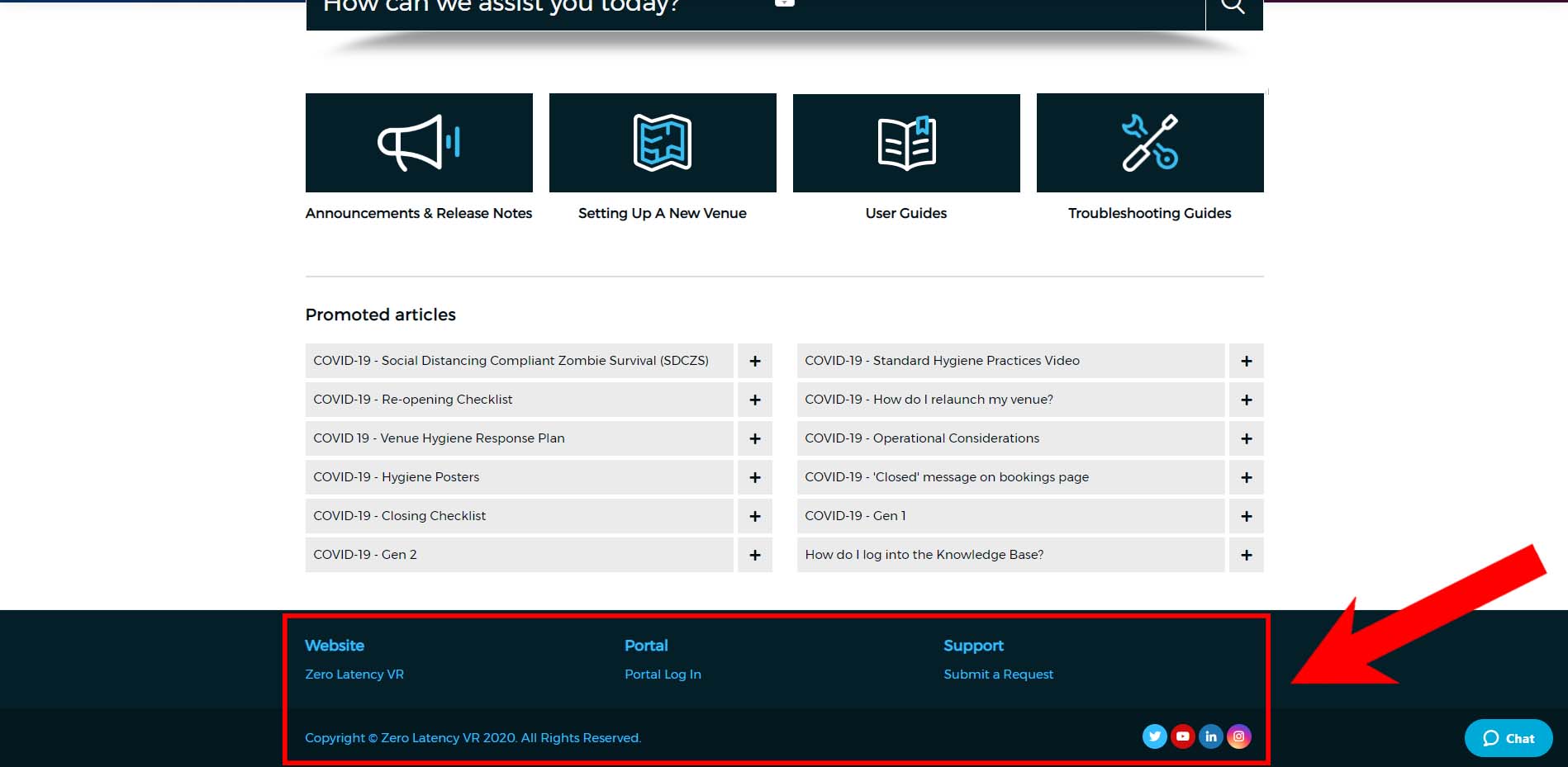
- In the Footer section, you can go to the Zero Latency VR website, Log in to the Portal and Submit a Request to Zero Latency Support.
- The Zero Latency Social links are also available.
How can I log a ticket to Zero Latency Client Services?
There are two ways you can log a ticket.
- You can email Client Services
- You can log a ticket through the Zendesk ticketing system
How do I log a ticket through Zendesk?
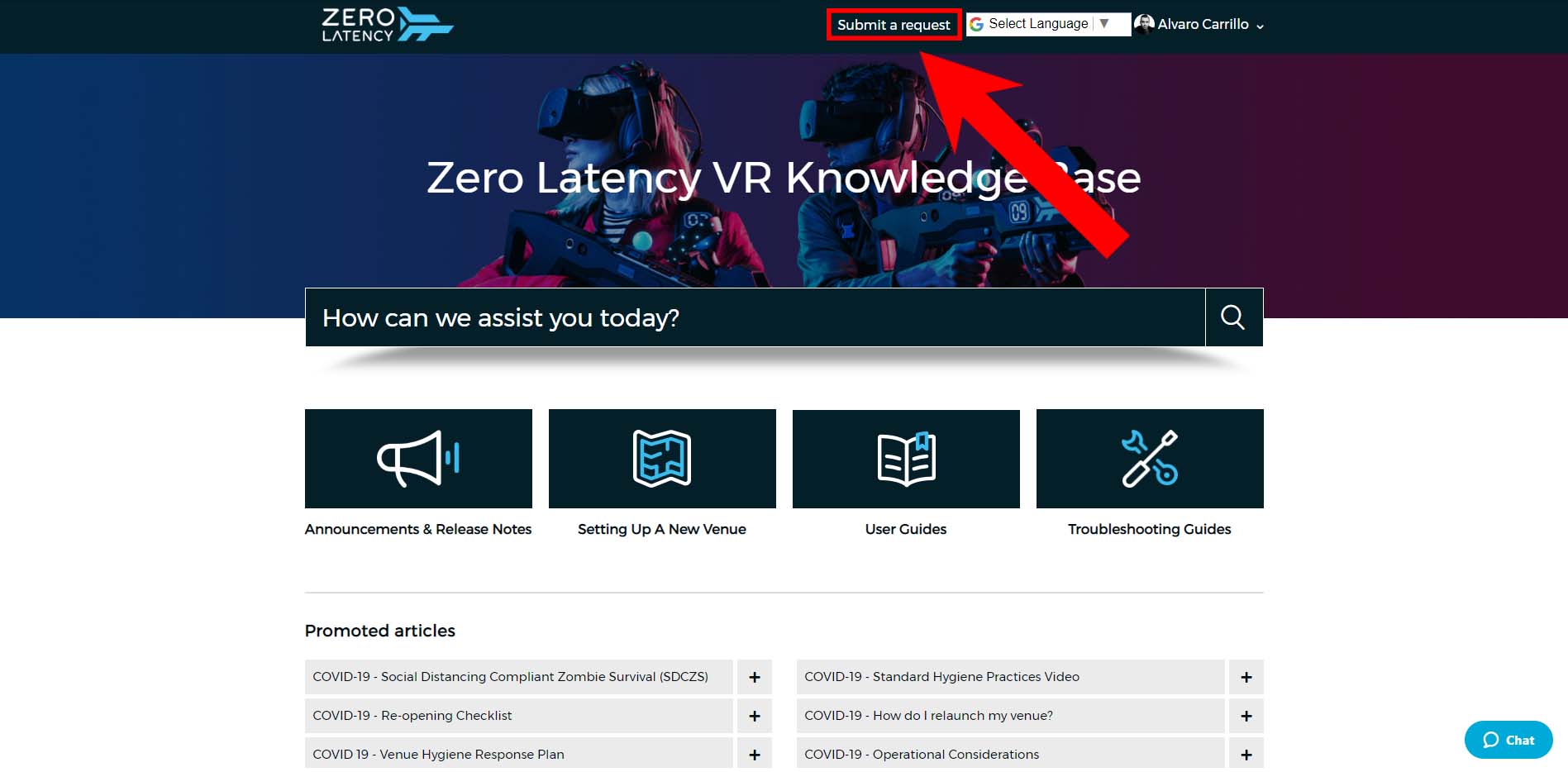
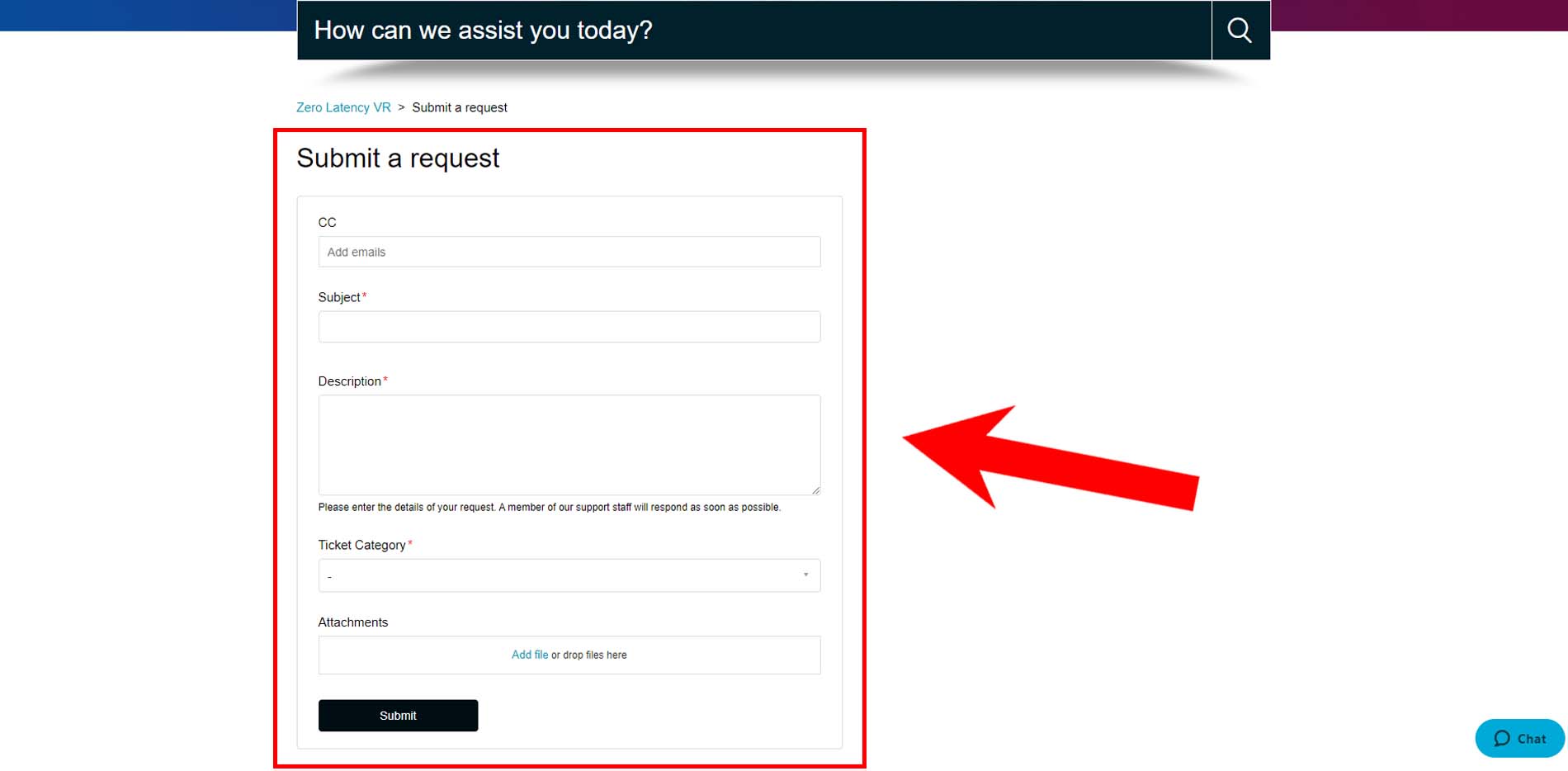
- To submit a ticket through Zendesk, click on the "Submit a request" button.
A ticket form will appear.
- Please fill out the form with as much detail as possible so that the support team can help you more efficiently.
- There is an option to add a photo, a video or other files.
Article Keywords/Phrases:

Understanding the support page on the portal
Support overview
Comments
0 comments
Please sign in to leave a comment.