Front of House (Briefing Room) PC Imaging Follow
Introduction
The Front of House machine (FH) imaging process is quite different to the process used by most other machines, as the FH does not require a Launcher to function, thus does not follow the same steps.
This article will take you through all the steps to get your FH machine working via the Imaging process.
Time Required
30 minutes
Tools and Equipment Required
- Re-imaging drive.
- Alienware Alpha computer (FH)
- Mouse and keyboard
- Computer Monitor
- Ethernet cable
- HDMI cable
Booting and Configuring the machine
Physical Setup
The first step is to physically set up the computer to allow for the imaging process.
For this step you will require the following:
- 1x Alienware Alpha computer (FH)
- 1x Alpha Power supply.
- 1x Ethernet cable (with access to the game network)
- 1x HDMI cable
- 1x Computer Monitor
- 1x USB Mouse
- 1x USB Keyboard.
- 1x Reimaging drive
- Place the Alpha on a desk or bench
- Plug the power supply into the back of the computer and the other end into a power outlet.
- Connect the HDMI cable to the "HDMI out" port on the back of the Alpha, and connect the other end to the computer monitor.
- Plug in the Ethernet cable to the Alpha, and connect the other end to the Game network.
- Plug in the USB mouse and USB Keyboard.
- Plug in the Re-imaging drive to one of the remaining USB Ports.
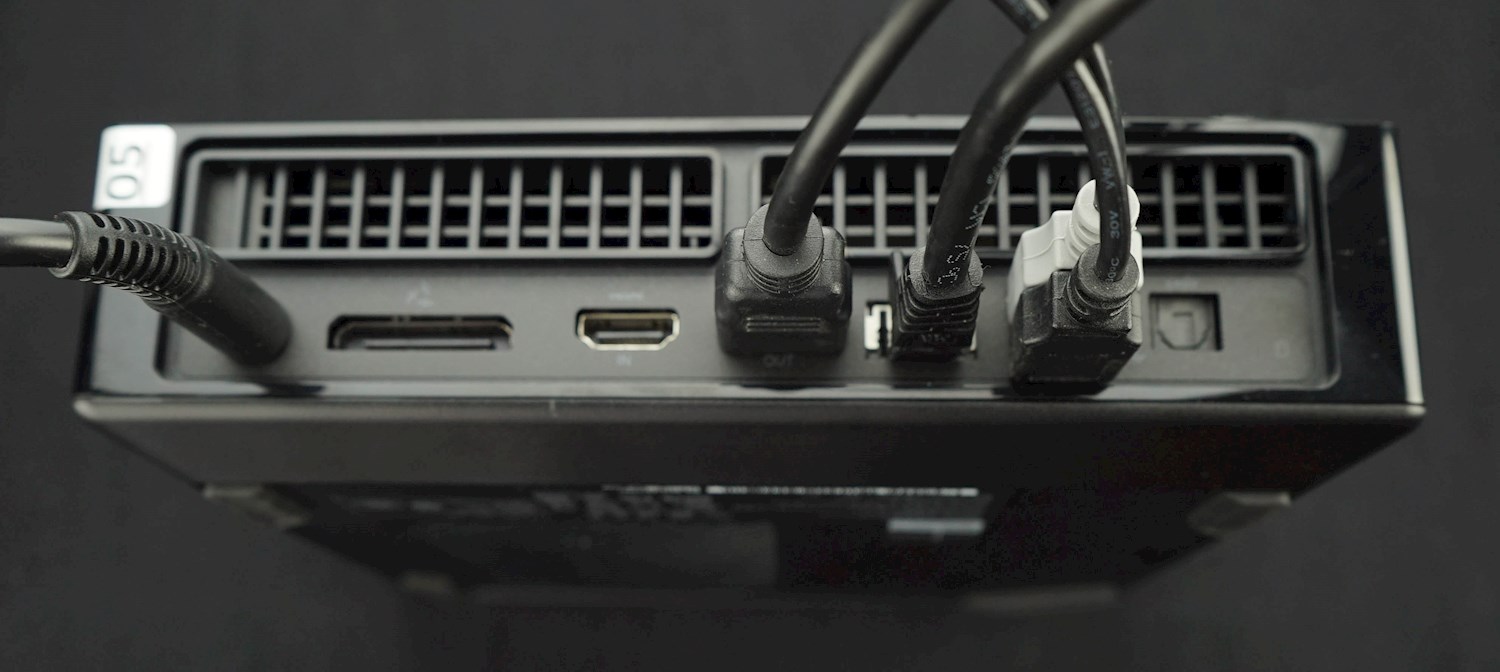
Booting and Configuring the machine
Next, we need to start the computer, and boot into the USB reimaging drive.
- Ensure the computer is powered off.
- Power the computer on, and as it starts up press "F12" repeatedly on the keyboard until you land on the "Boot Options" menu.
- Select the USB drive from the above list using the arrow keys to navigate up and down, and then press enter.
- The machine will now run through a present list of tasks (this can take some time)
- After the initial setup has run, you will be presented with the below prompt:
- Type in your site code in the format above (e.g; FO-PB) and press enter.
- You will then be asked to type in the computer type and a number.
- Please type in: FH
- and for System B, type: 02
- The machine will now finish the setup process. This can take some time.
Contact Client Services
Once the machine has been imaged, it will need a few extra steps completed by Client Services to ensure all the customisation for your site is completed.
Please ensure that the computer is powered on and connected to the network, and then contact the CS team and they can complete this.
Article Keywords/Phrases:
Front of House
Reimage
Re-Image
Comments
0 comments
Article is closed for comments.