How do I use the Troubleshoot button? Follow
Introduction
The Troubleshoot button on the Launcher allows you to quickly and efficiently record any issues experienced during operations. The following article will give you the knowledge in understanding how to use the troubleshoot button and record resolved and unresolved issues.
How do I access the Troubleshoot button?
How do I report an issue that was Resolved?
How do I report an issue that was not Resolved?
How do I access the Troubleshoot button?
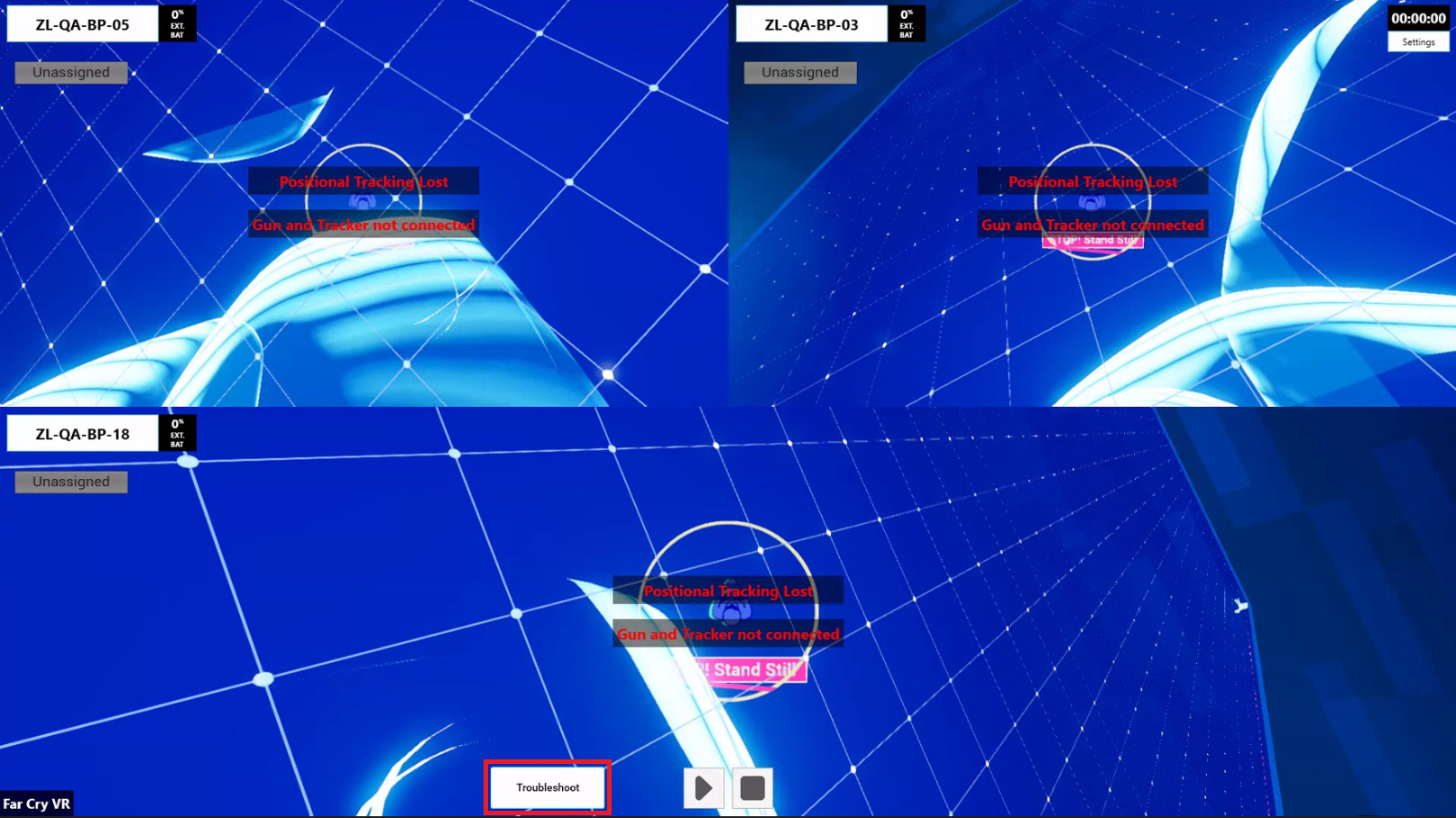
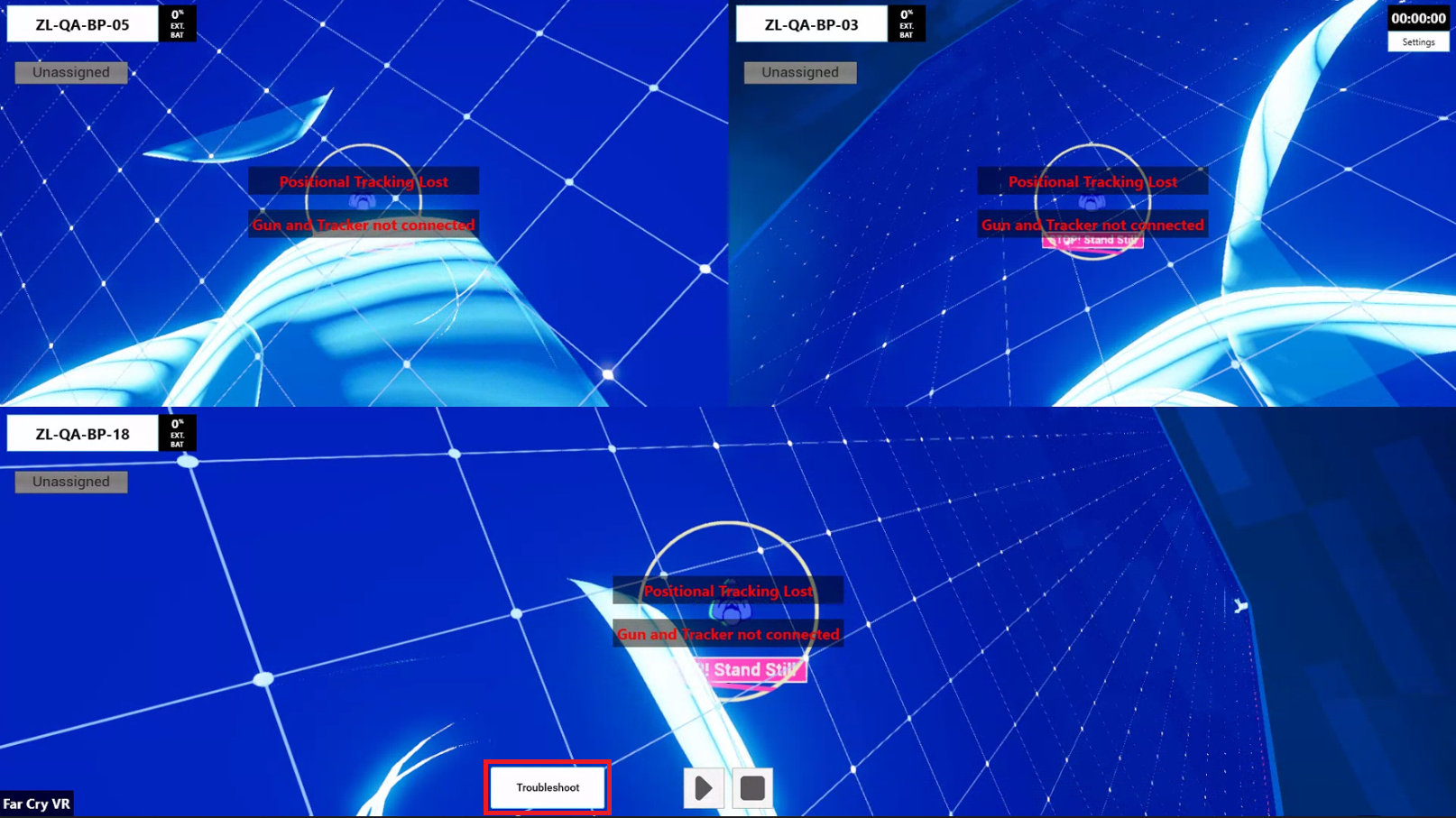
- The Troubleshoot button will be displayed on the Launcher
How do I report an issue that was Resolved?
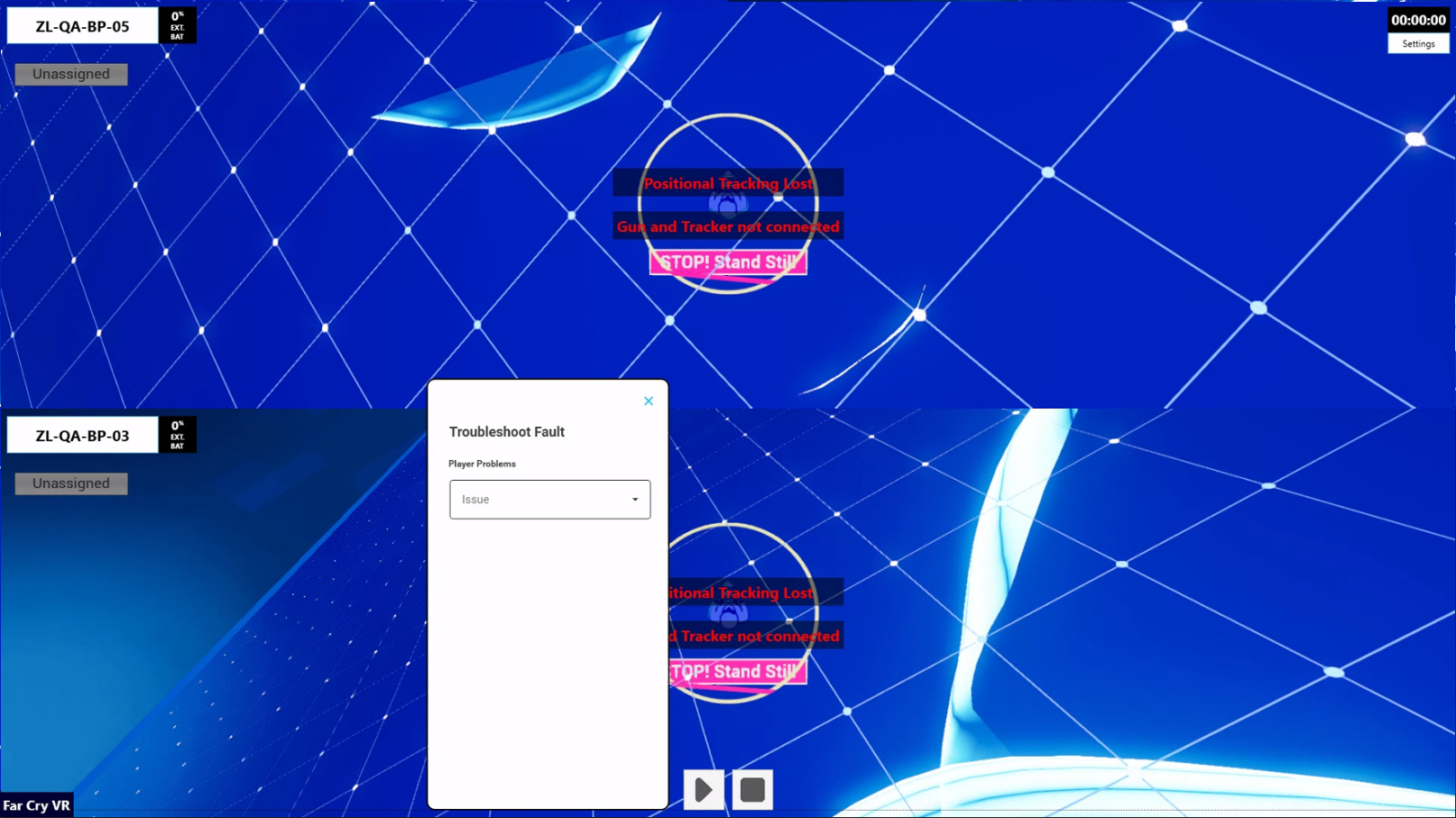
- Click "Troubleshoot" on the Launcher
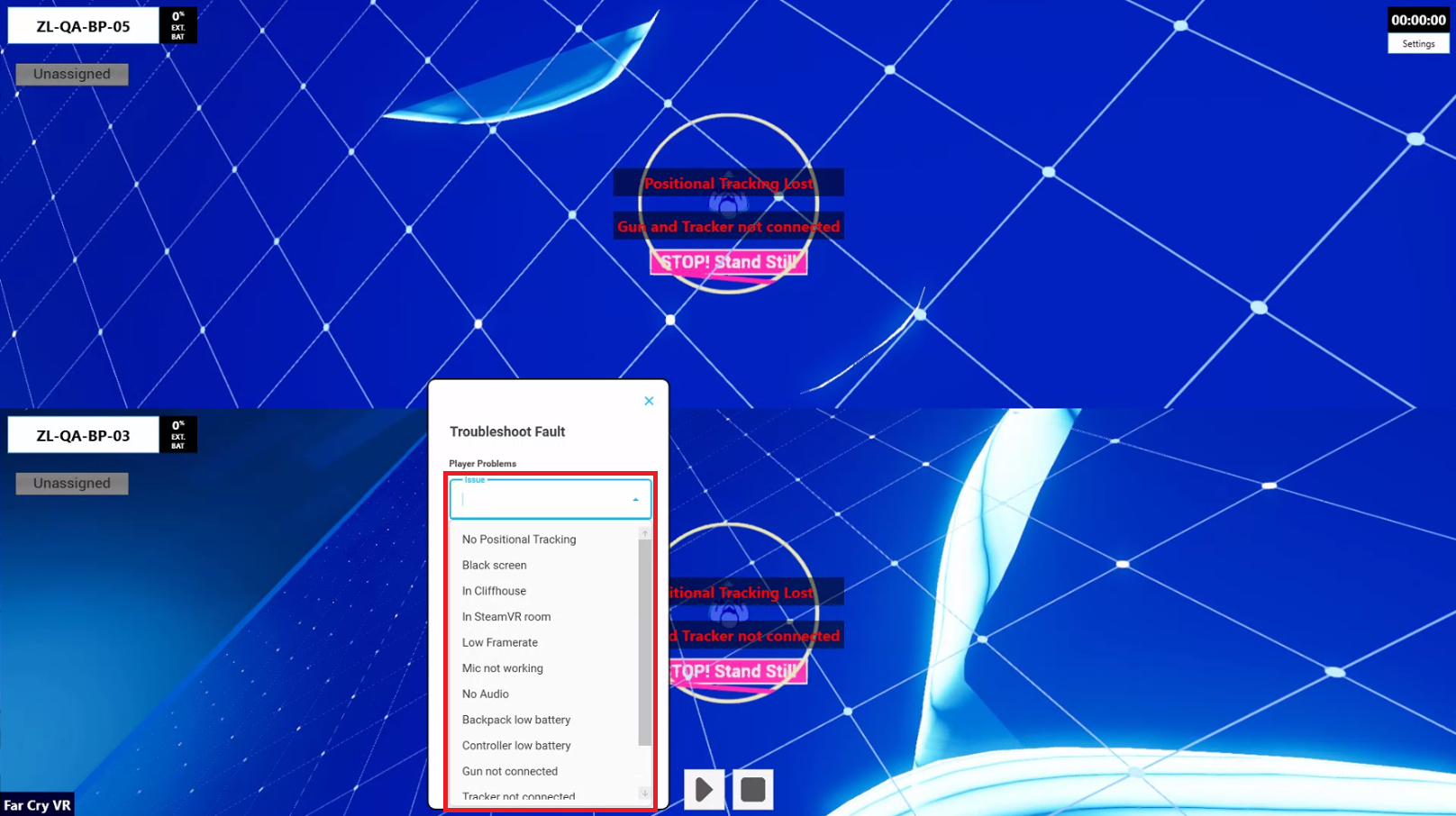
- Click on the "Issue" field and select the fault
- Once selected, click on "Yes"
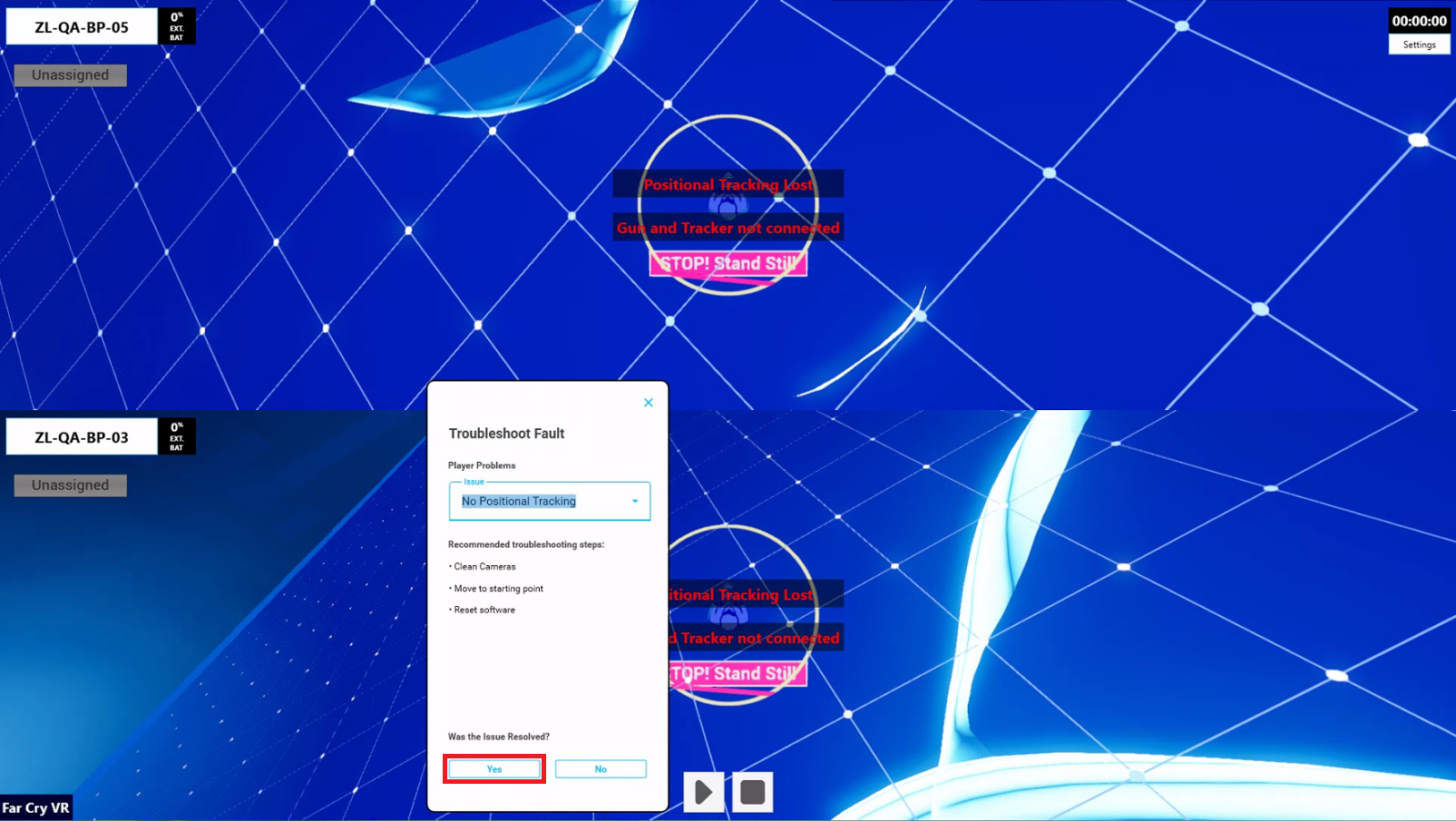
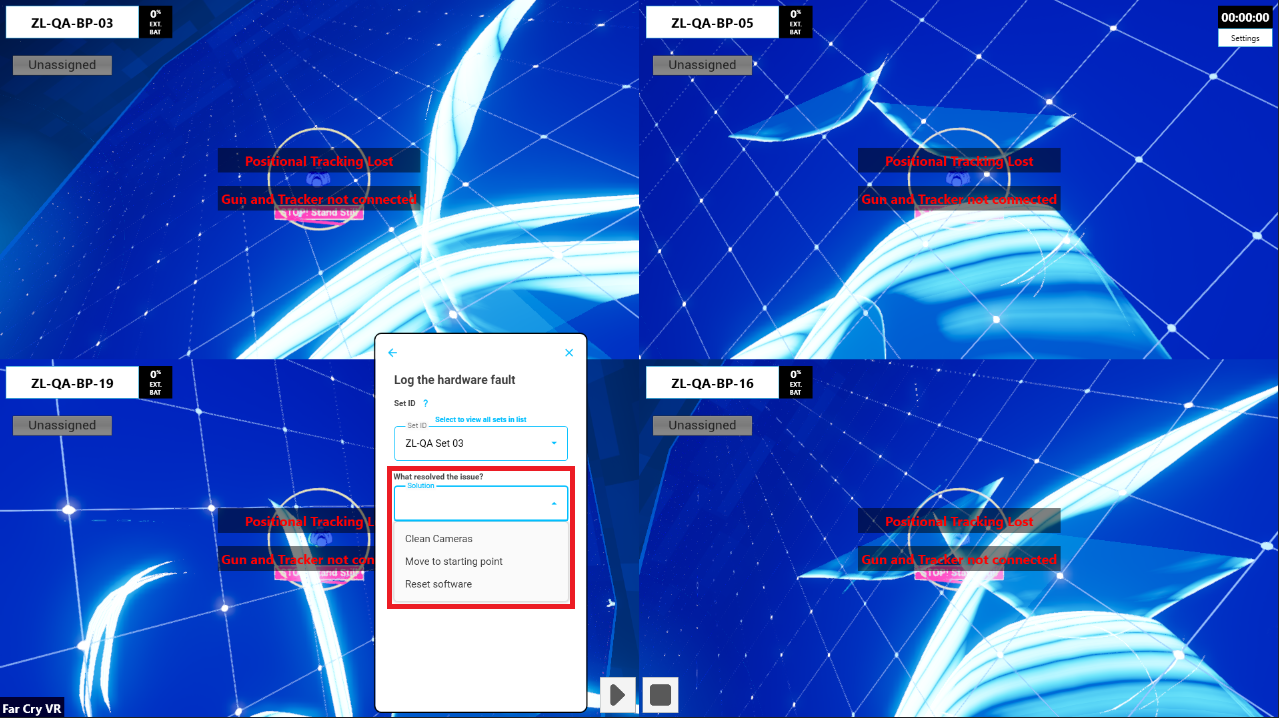
- Click on the "Set ID" field and select the wearable set
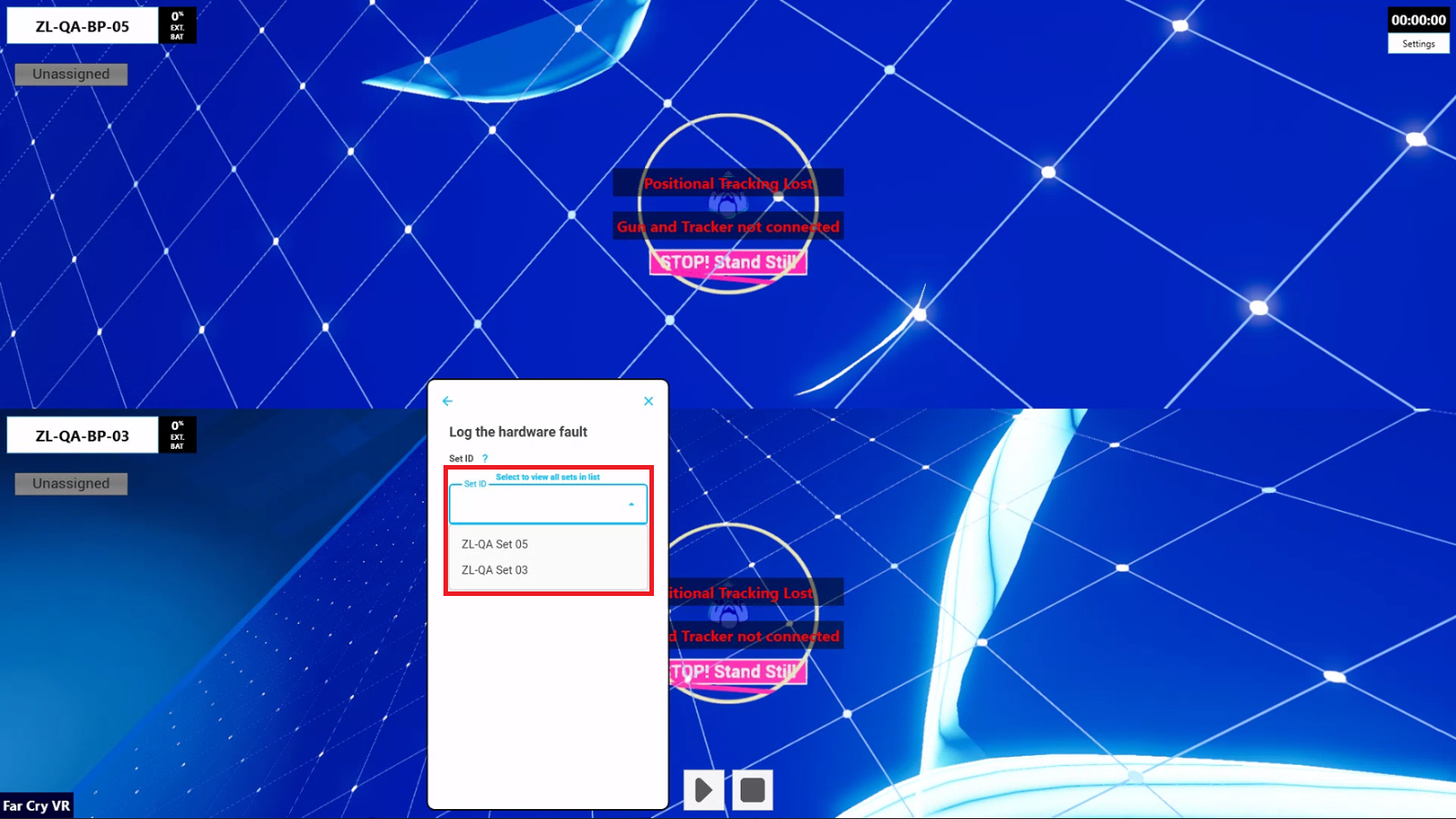
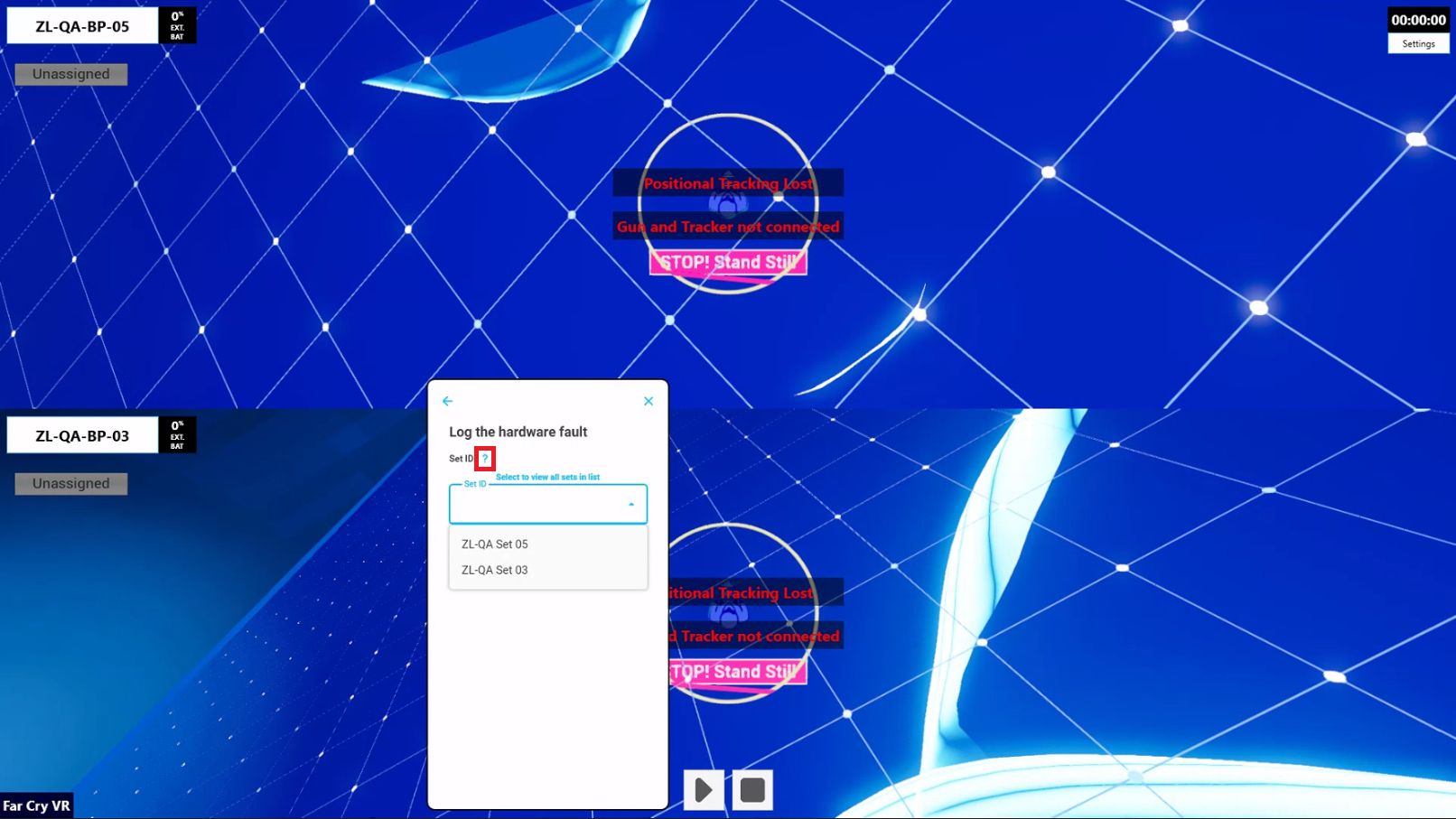
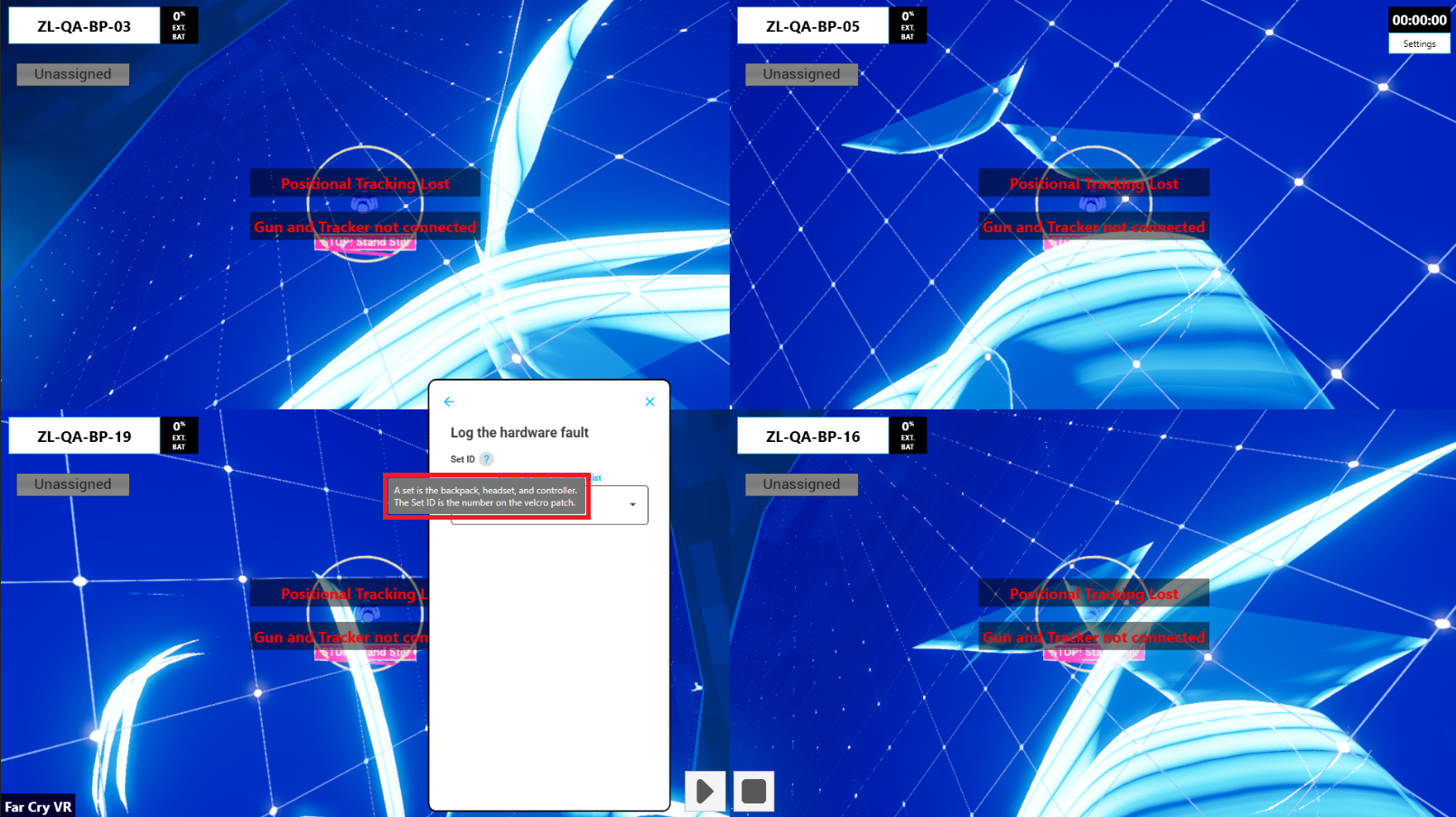
- To learn more about a Set ID, hover your cursor over the question mark icon
- If there are no backpacks currently turned on, you will need to click the "Select to view all sets in list" and a list of all wearable sets will be displayed

- Click on the "Solution" field and select the resolution
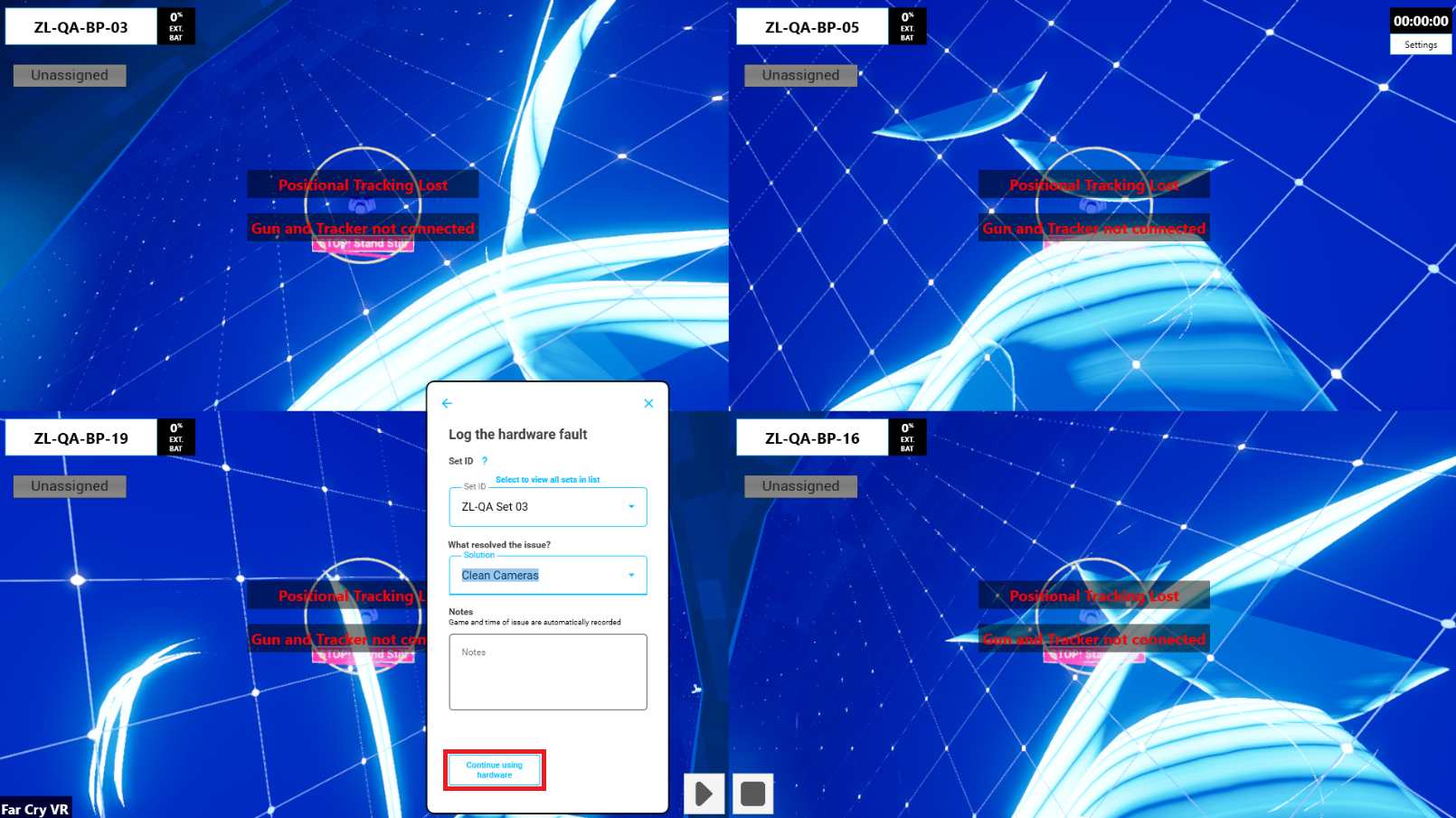
- Add any additional notes that may be required

- Click on the "Continue using hardware" button
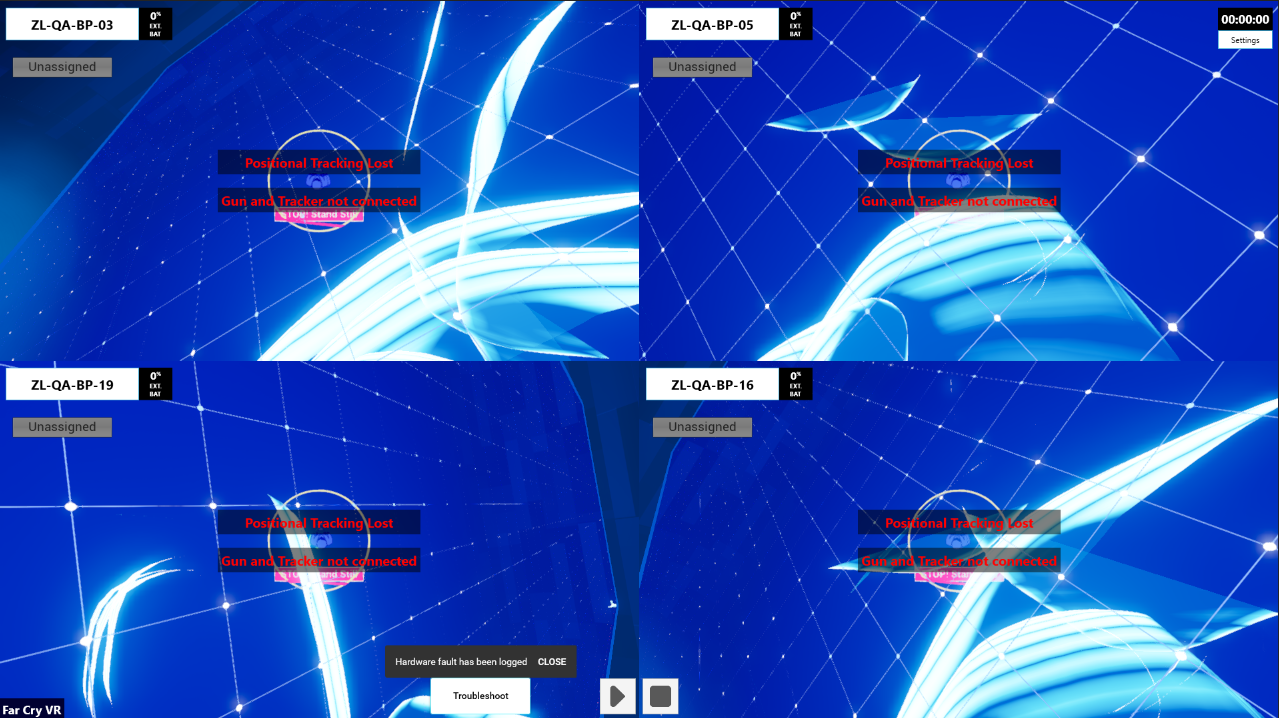
How do I report an issue that was not Resolved?
- Click on the "Troubleshoot" button on the Launcher
- Click on the "Issue" field and select the fault
- Once selected, click on "No"
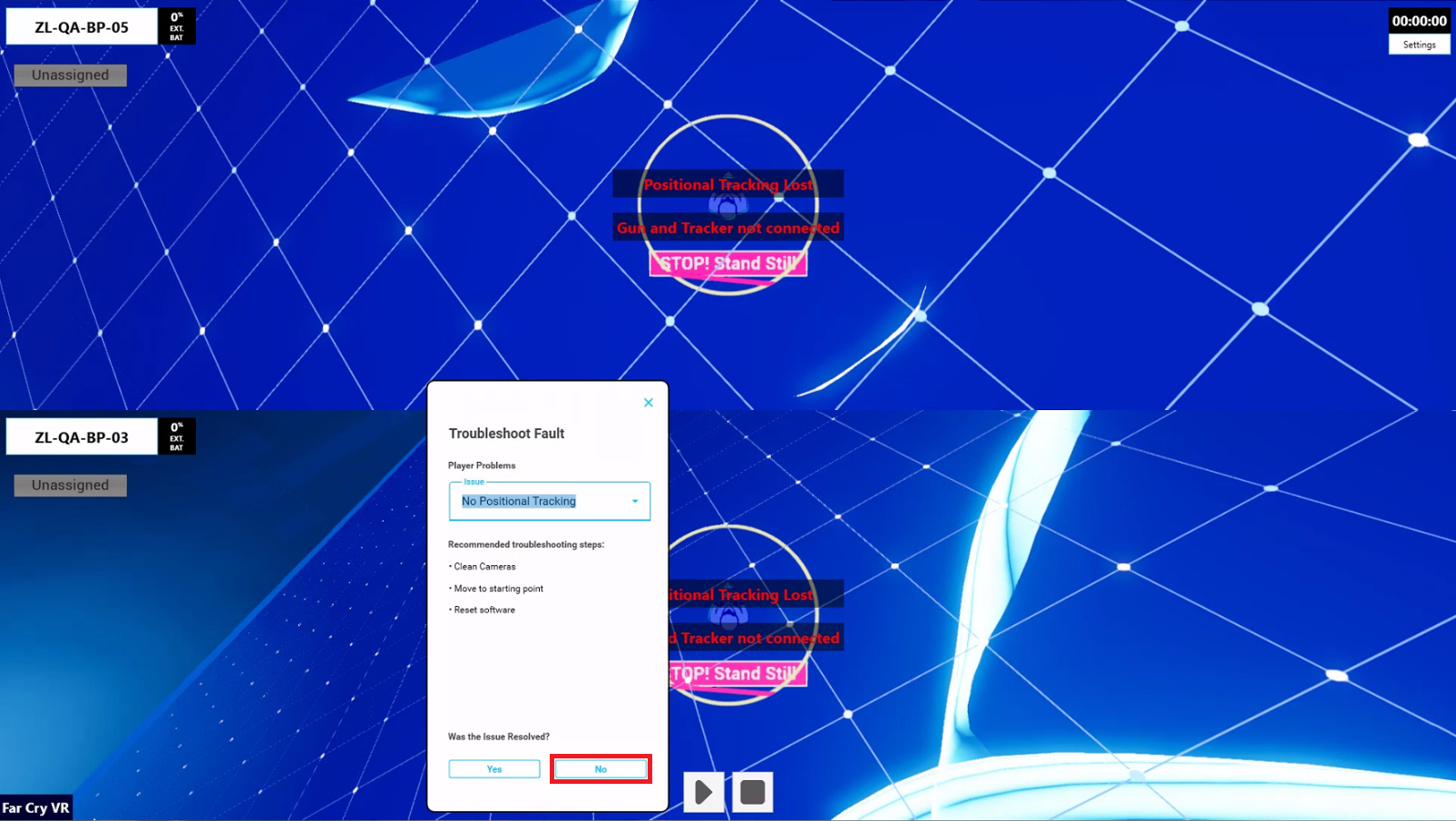
- Click on the "Set ID" and select the wearable set
- To learn more about a Set ID, hover your cursor over the question mark icon
- If there are no backpacks currently turned on, you will need to click the "Select to view all sets in list" and a list of all wearable sets will be displayed
- Click on the "Game Master" field and select the Game Master, or manually type their name

- Add any additional notes that may be required
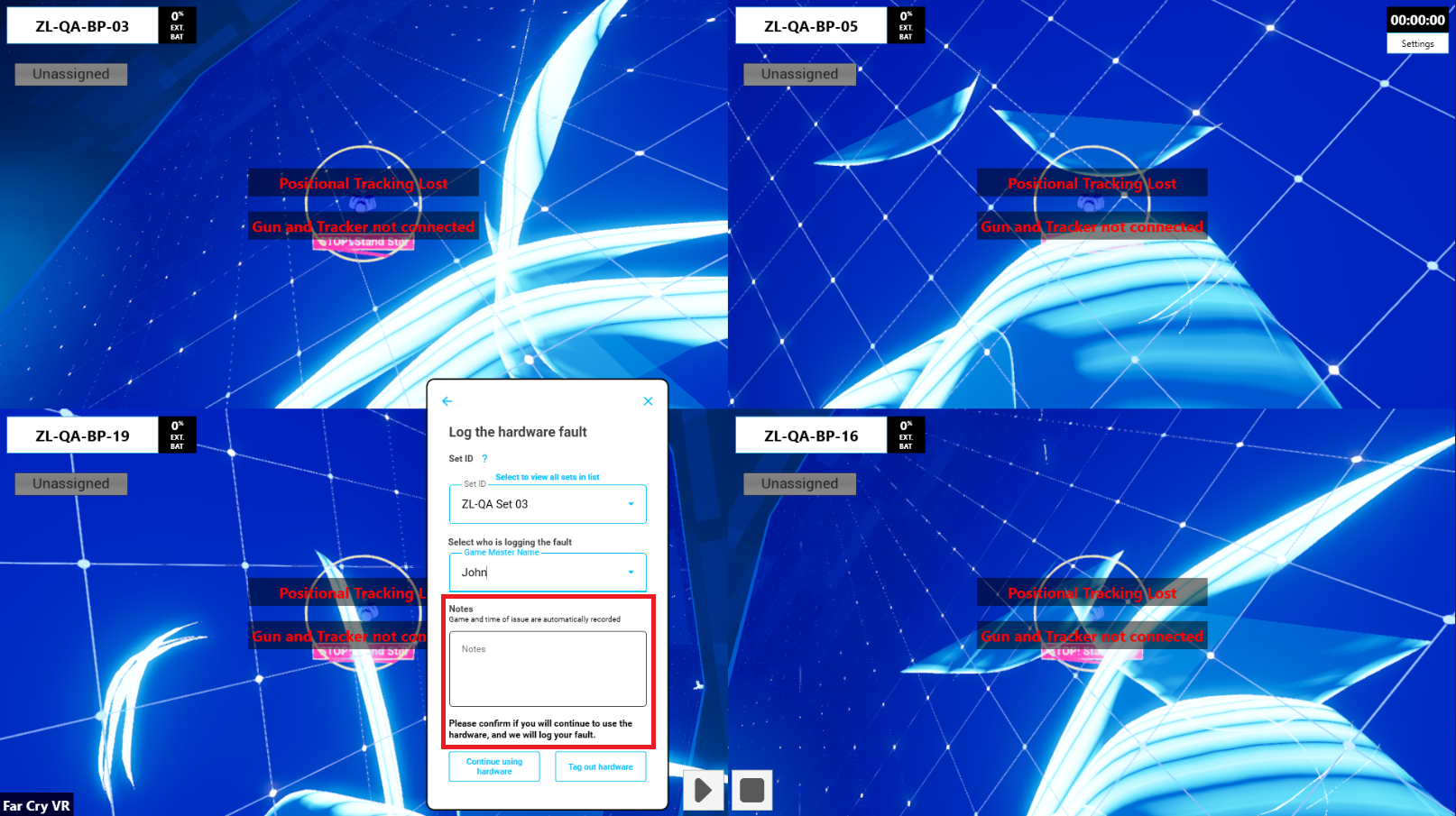
- Click on the "Tag out Hardware" button
Caution
Selecting "Continue using Hardware" will leave the wearable set as operational

- This will appear in the Hardware Manager in the Service History of the wearable set

Things to consider
- Provide as much detail as possible when reporting and updating issues to allow other Service Technicians to have full visibility on the fault
- If a wearable set is tagged out it can still be used during operations - if the wearable set is operational but the status is "Tagged Out" in the Hardware Manager, this will need to be manually changed
- It is best practice to physically tag out the faulty wearable set with an "Out of Service" velcro patch and move it to the maintenance area for the Service Technician to investigate
Article Keywords/Phrases:

Log faults on Launcher
Hardware button
Comments
0 comments
Article is closed for comments.