Headsets Overview Follow
Introduction
The Headsets page of the Hardware Manager provides you with a list of all the headsets that are at your venue. The following article will give you the knowledge in updating details, adding a new headset and updating the status of each headset.
How do I access the Headsets page?
Understanding the layout of Headsets
Understanding the layout of a Headset
How do I access the Headsets page?
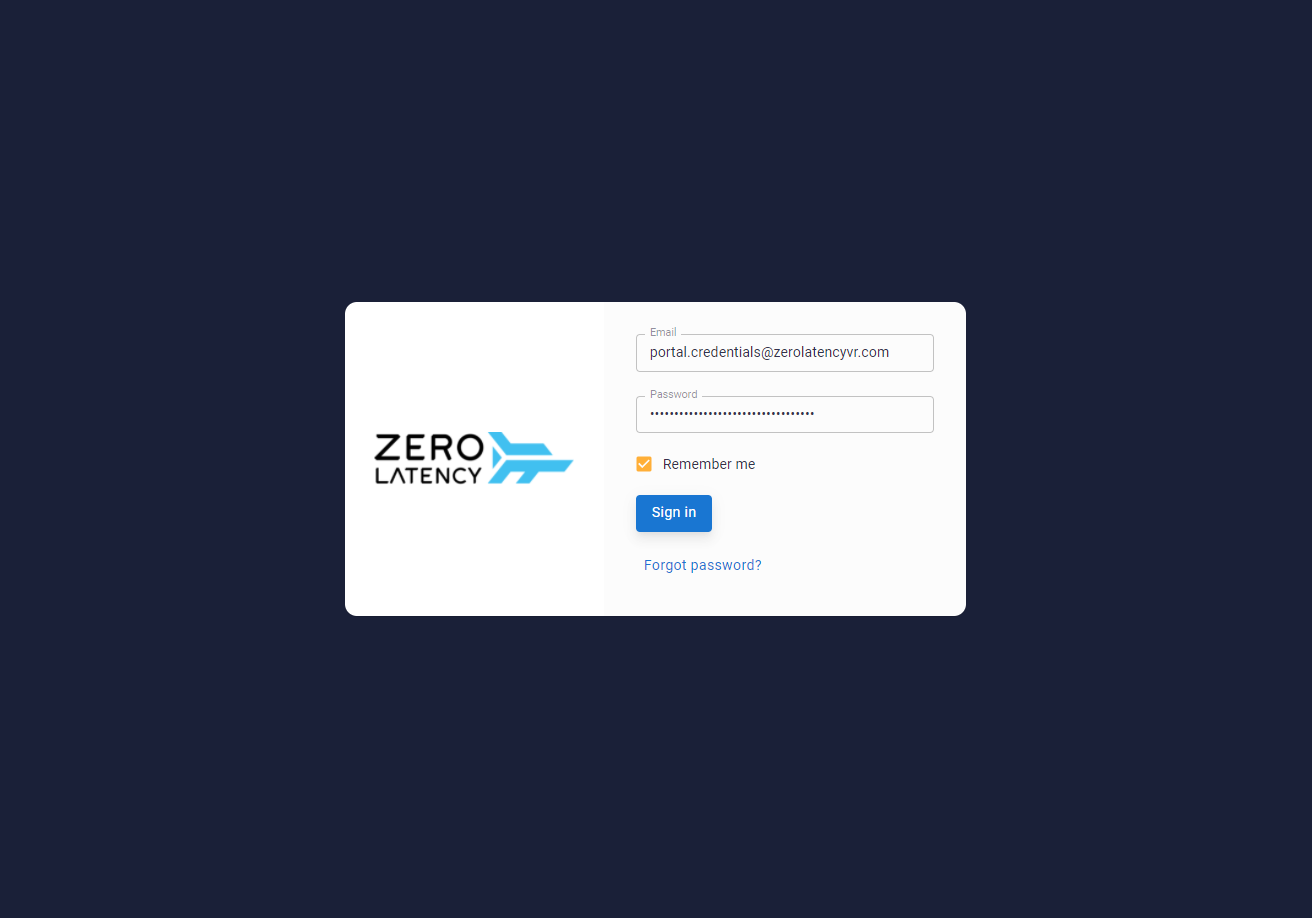
- Log into the Hardware Manager with your Portal credentials
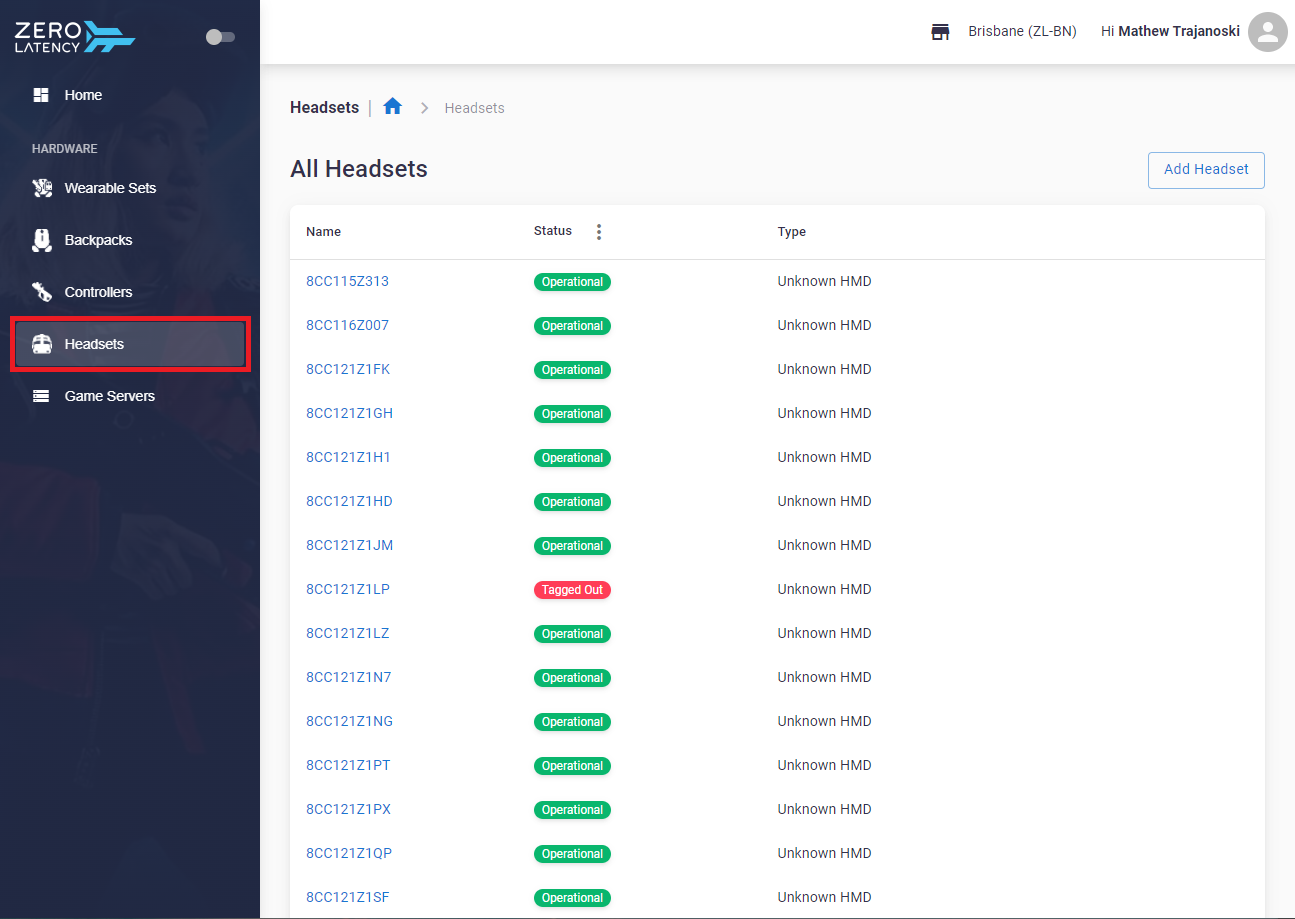
- On the navigation bar, select "Headsets"
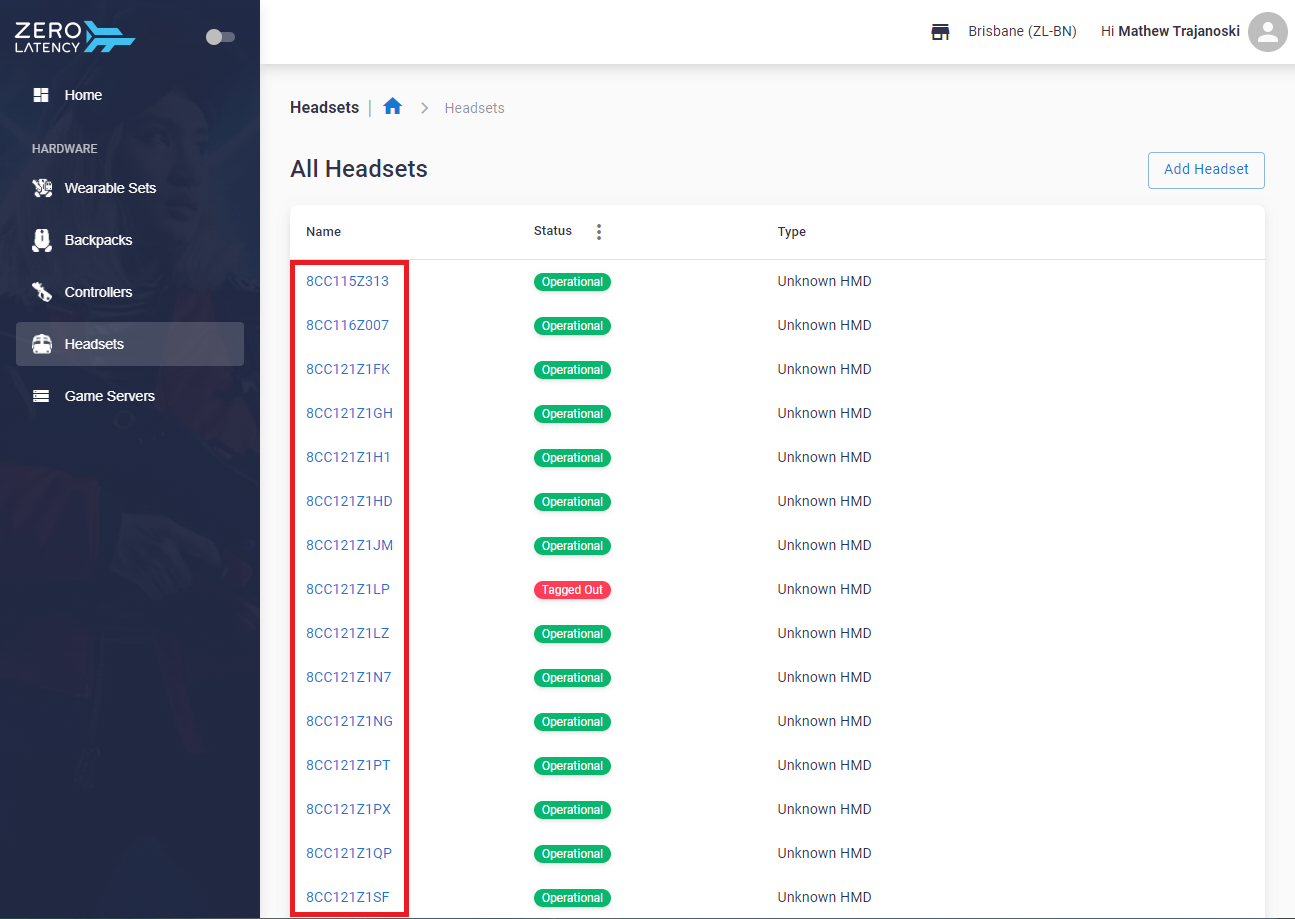
Understanding the layout of Headsets
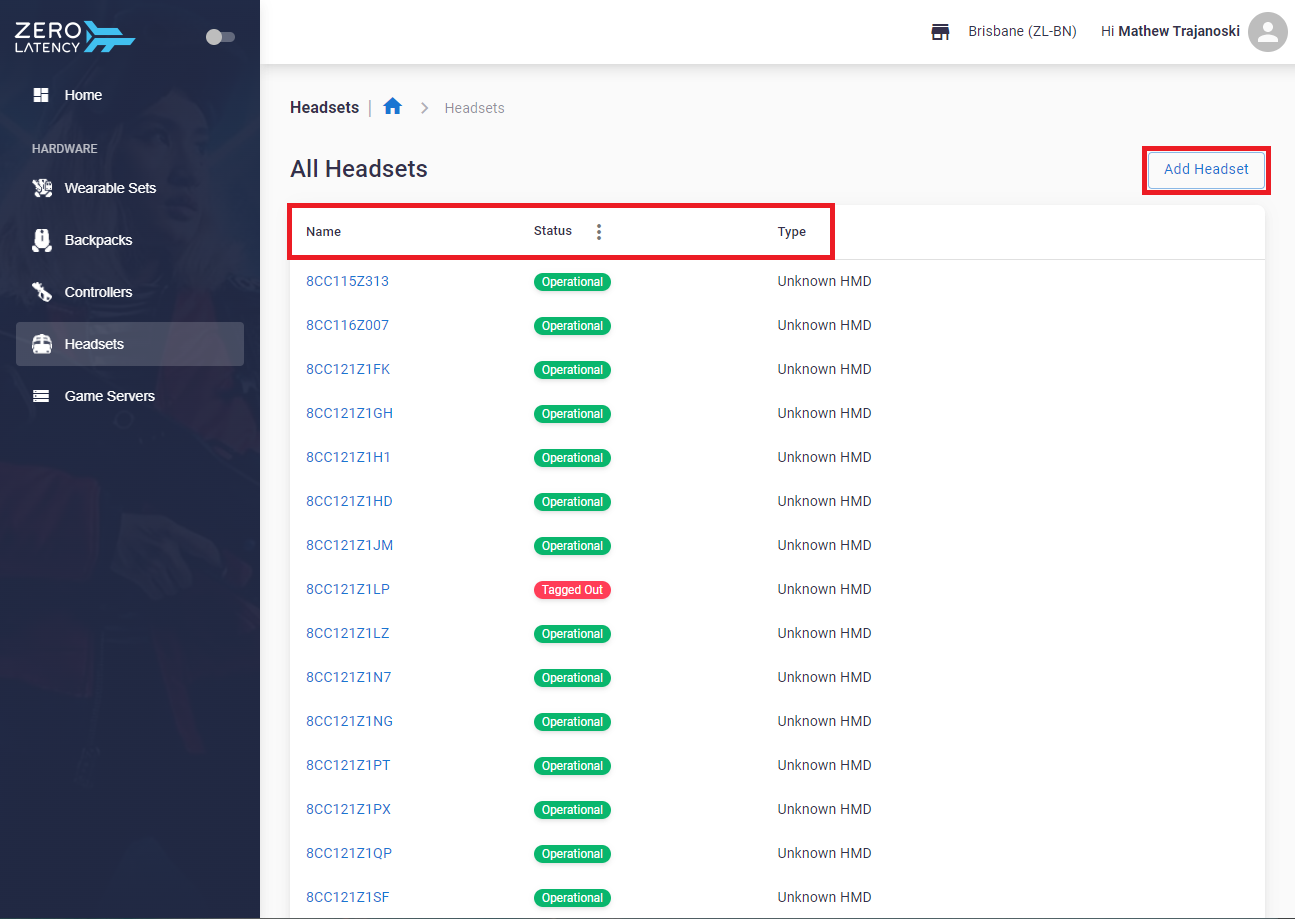
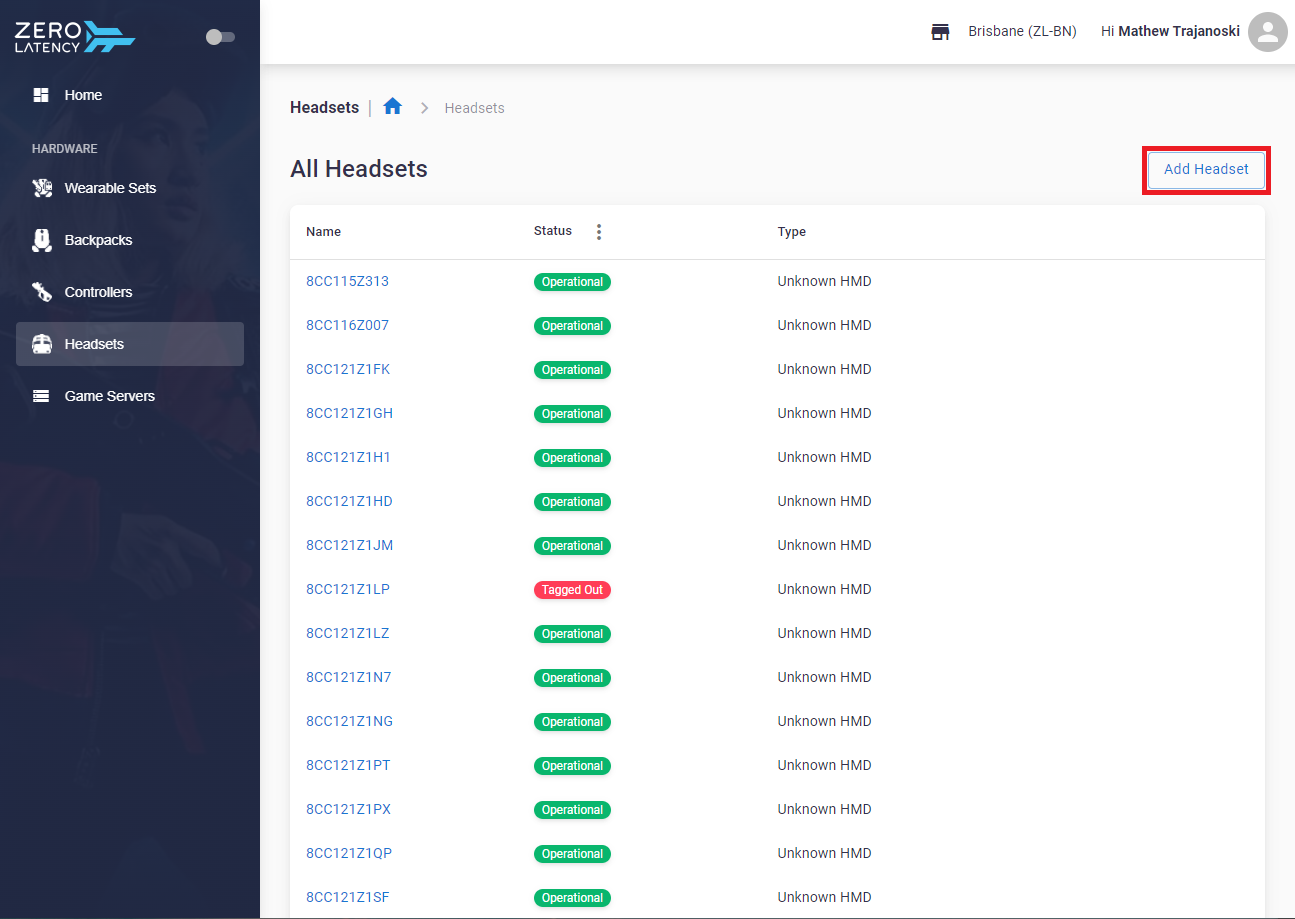
- This page displays the following information:
- Name: The name assigned to the headset
- Status: The state of the headset
- Type: The details of the headset
- Add Headset: To add an additional headset
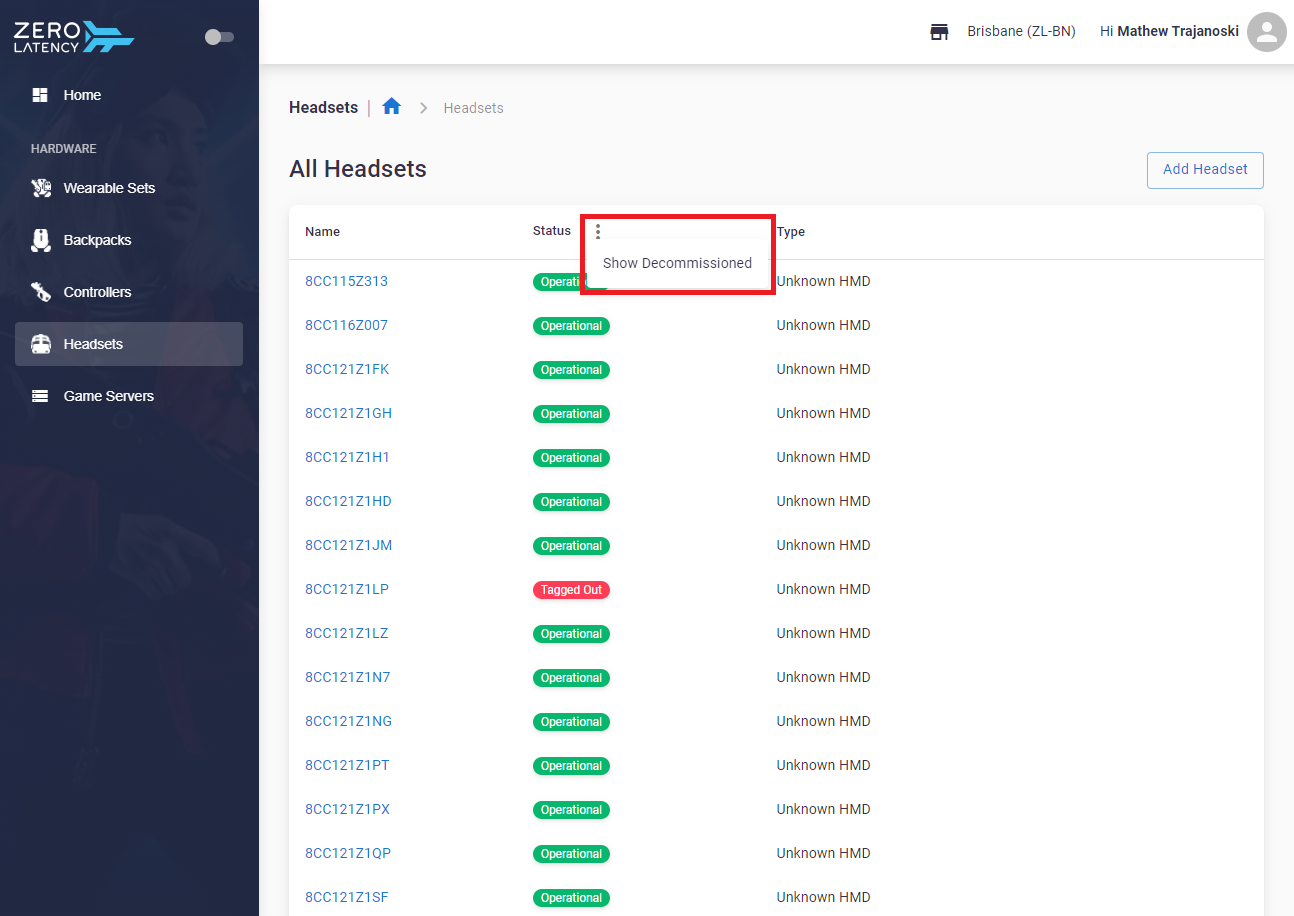
- You can view any decommissioned headsets by selecting the 3 dots icon next to status
How do I view a Headset?
- Click on a headset to view additional information
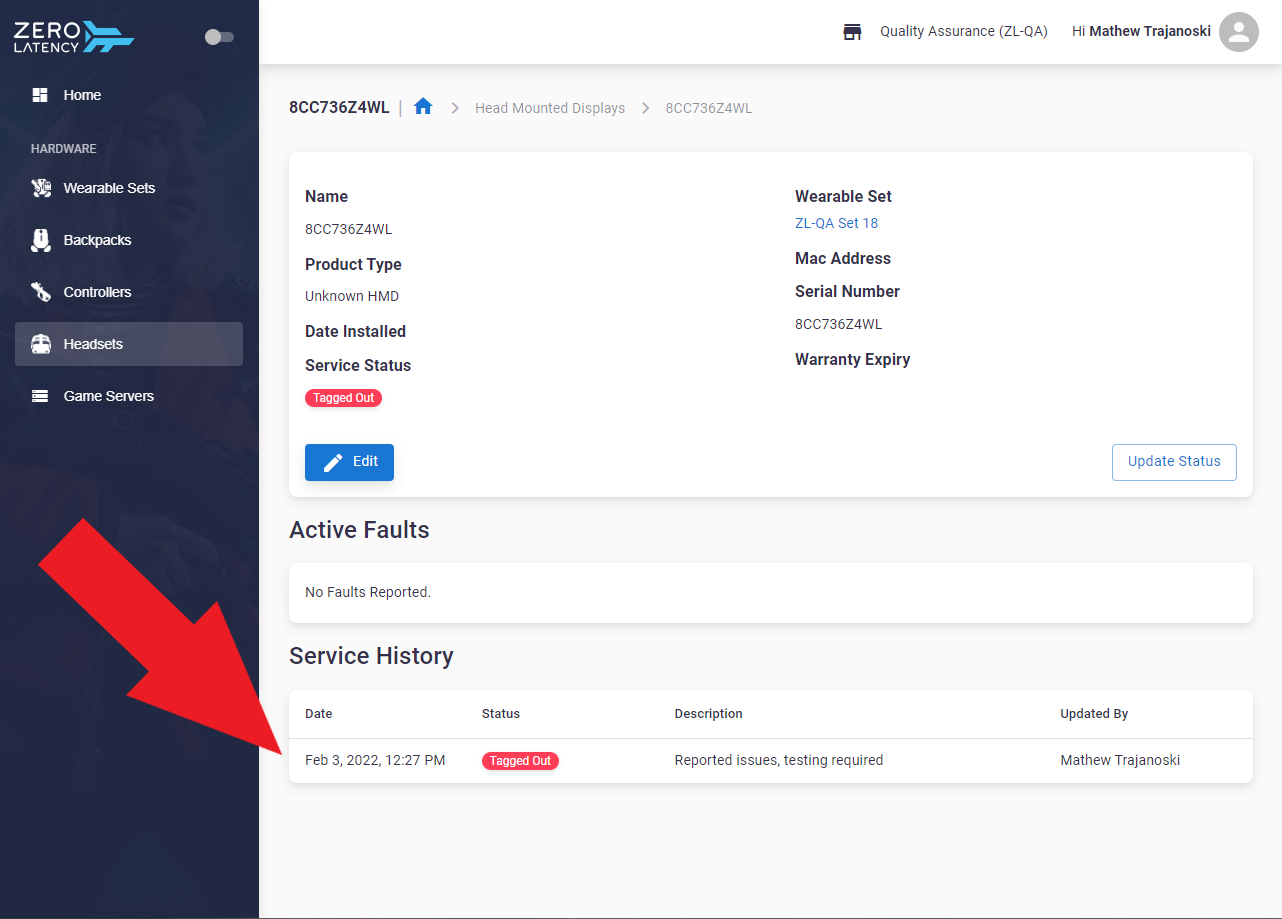
Understanding the layout of a Headset
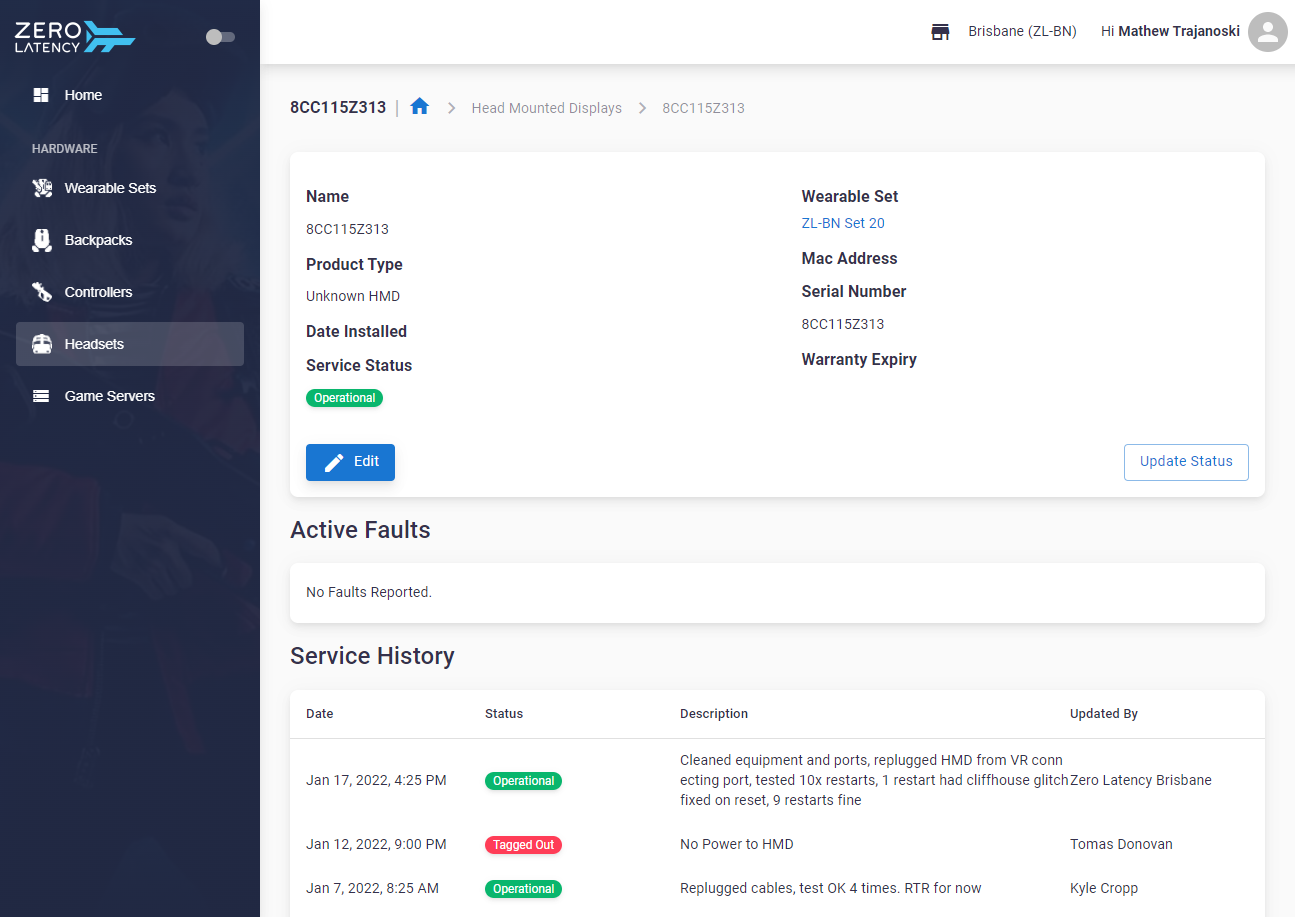
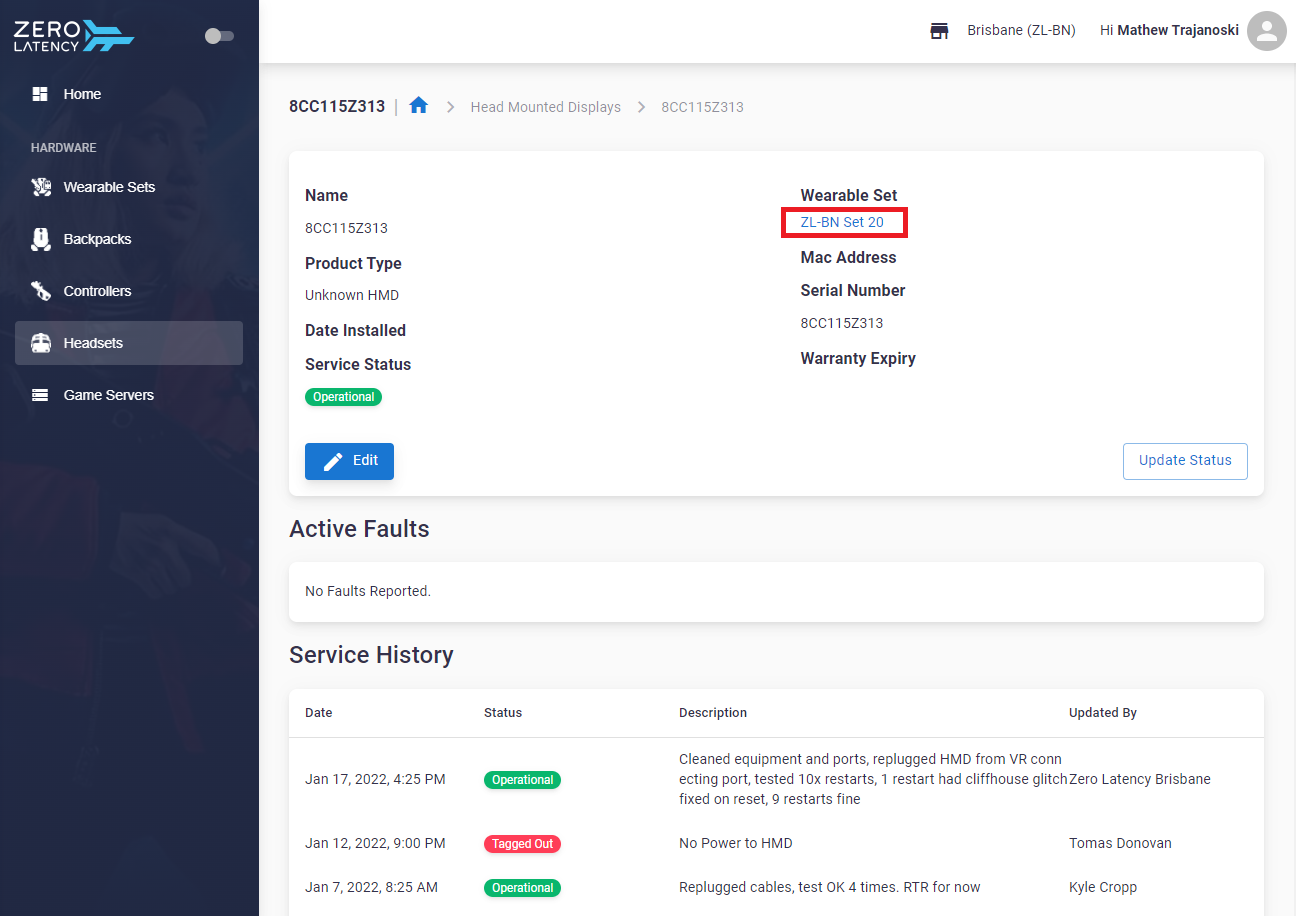
- This page displays the following information:
- Headset: Detailed information of a headset - Further below is information on Edit and Update Status

-
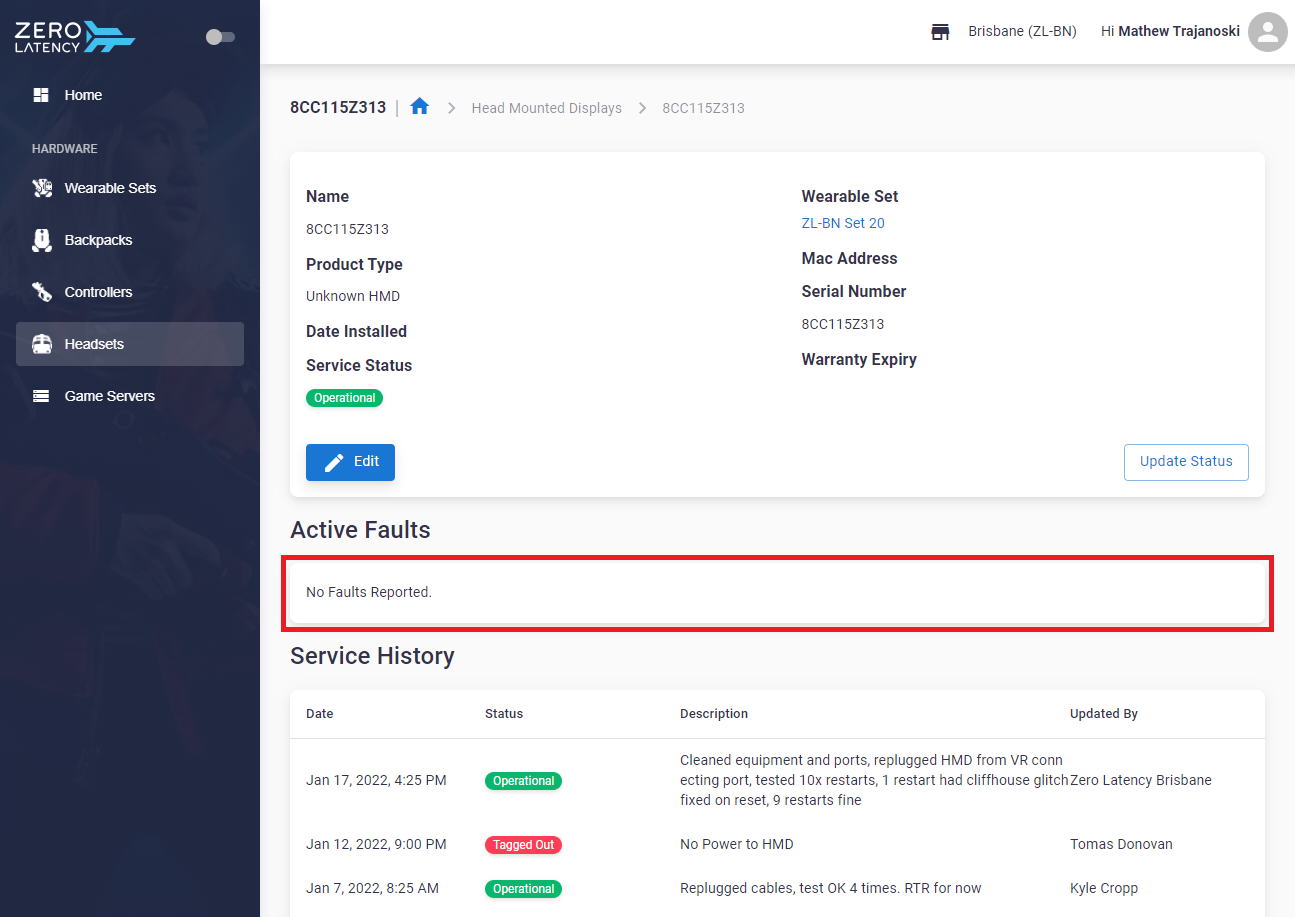
- Active Faults: Details of current reported issues
-
- Service History: A history of changes made to the headset
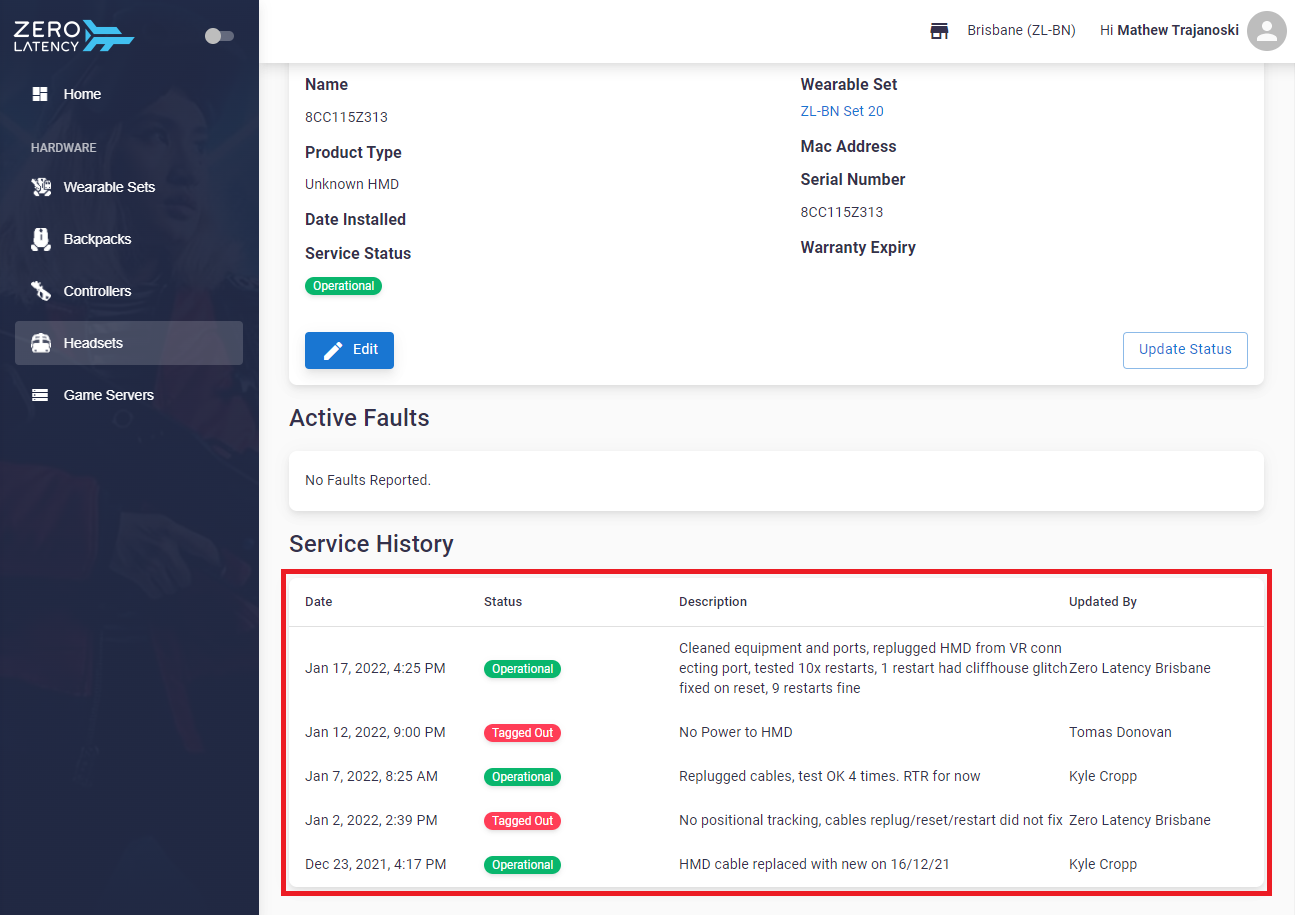
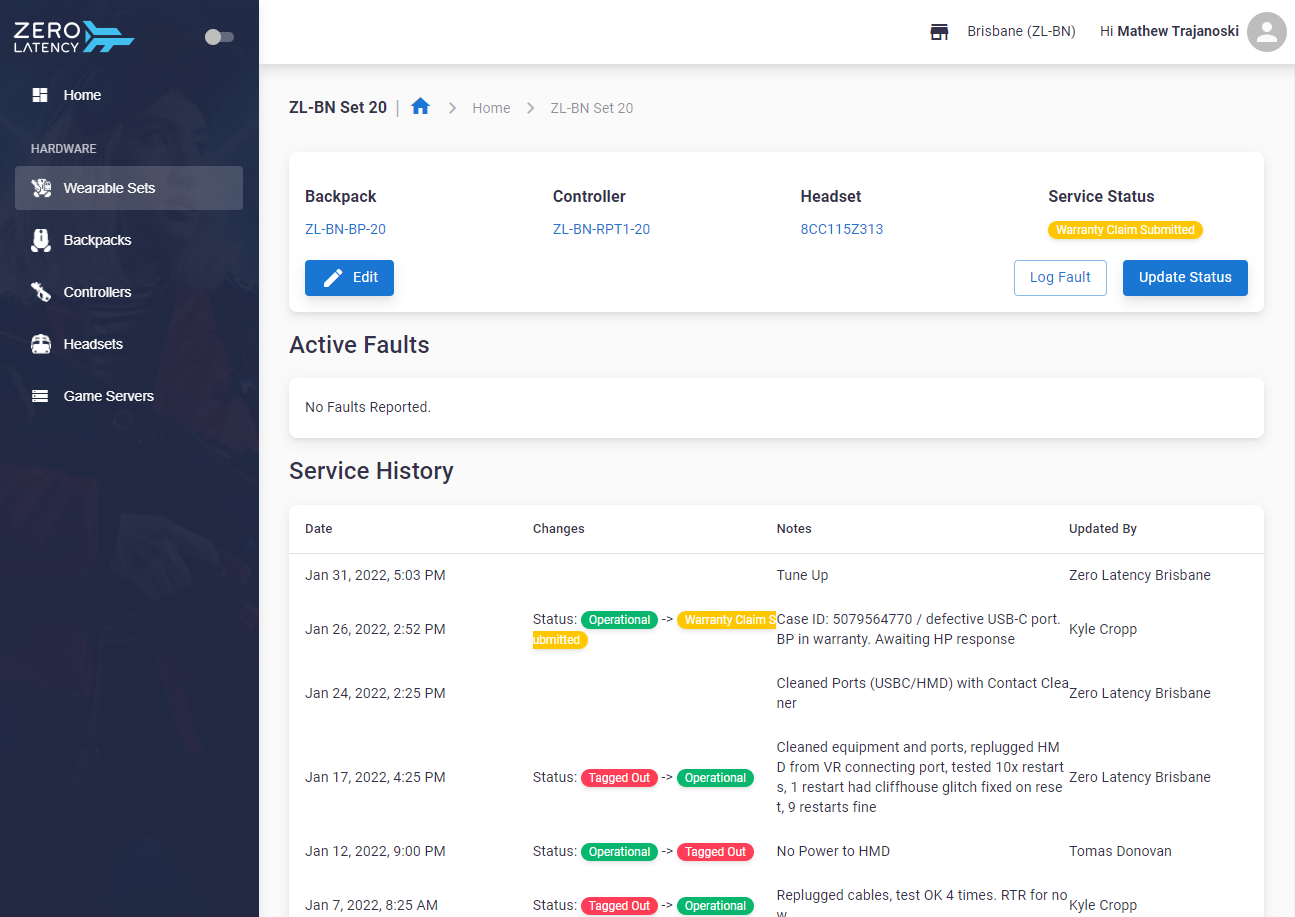
- You can view information on which wearable set the headset is combined with by clicking the link under Wearable Set
How do I add a Headset?
- Click "Add Headset" on the headsets page
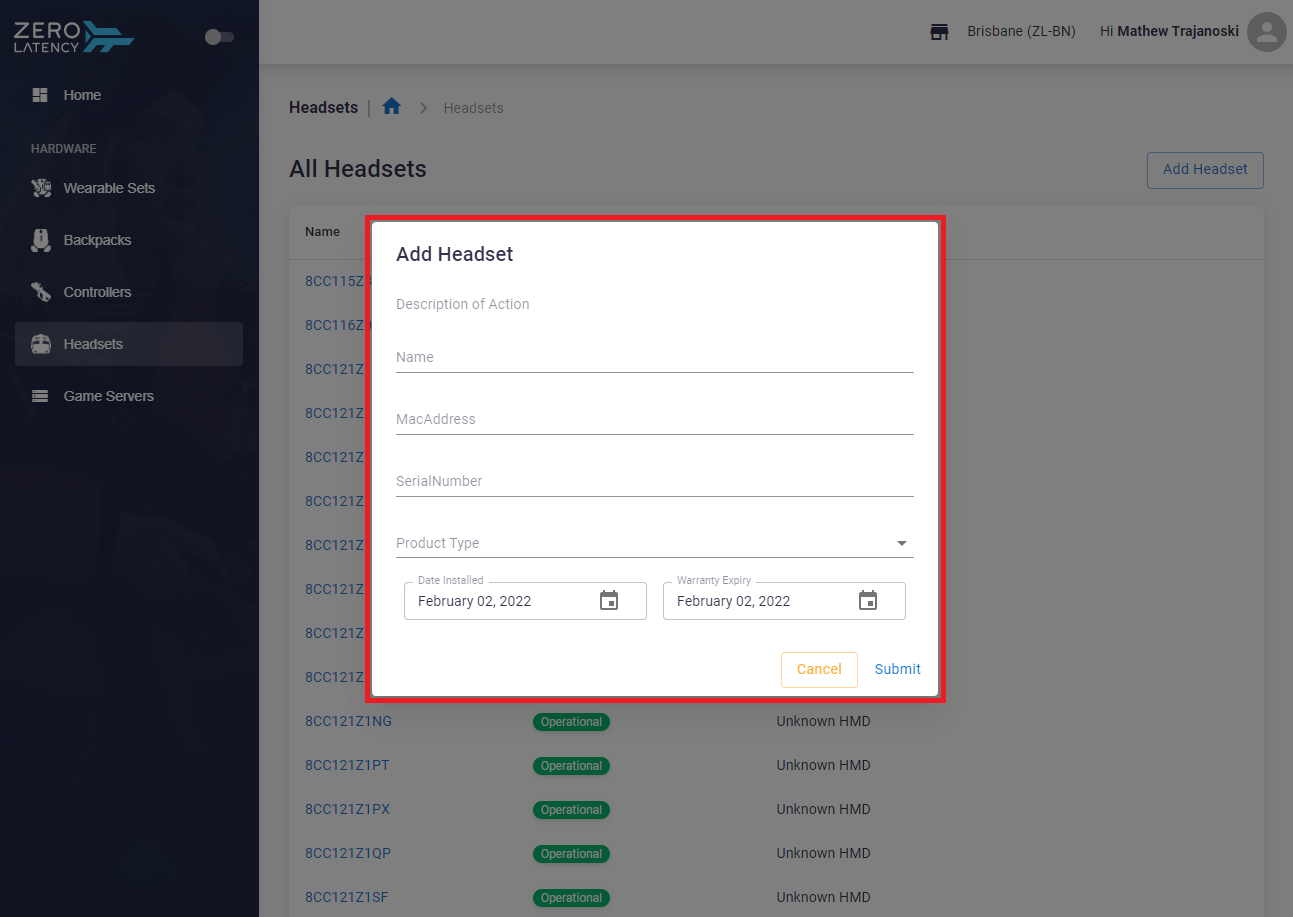
- A window will be displayed with the following fields that are required to be completed:
- Name: The device name
- Mac Address: The mac address of the device
- Serial Number: The serial number of the device
- Product Type: The model of the device
- Date Installed: When the device was installed
- Warranty Expiry: When the warranty for the device will expire
How do I edit a Headset?
- Click "Edit" on the details page of a headset
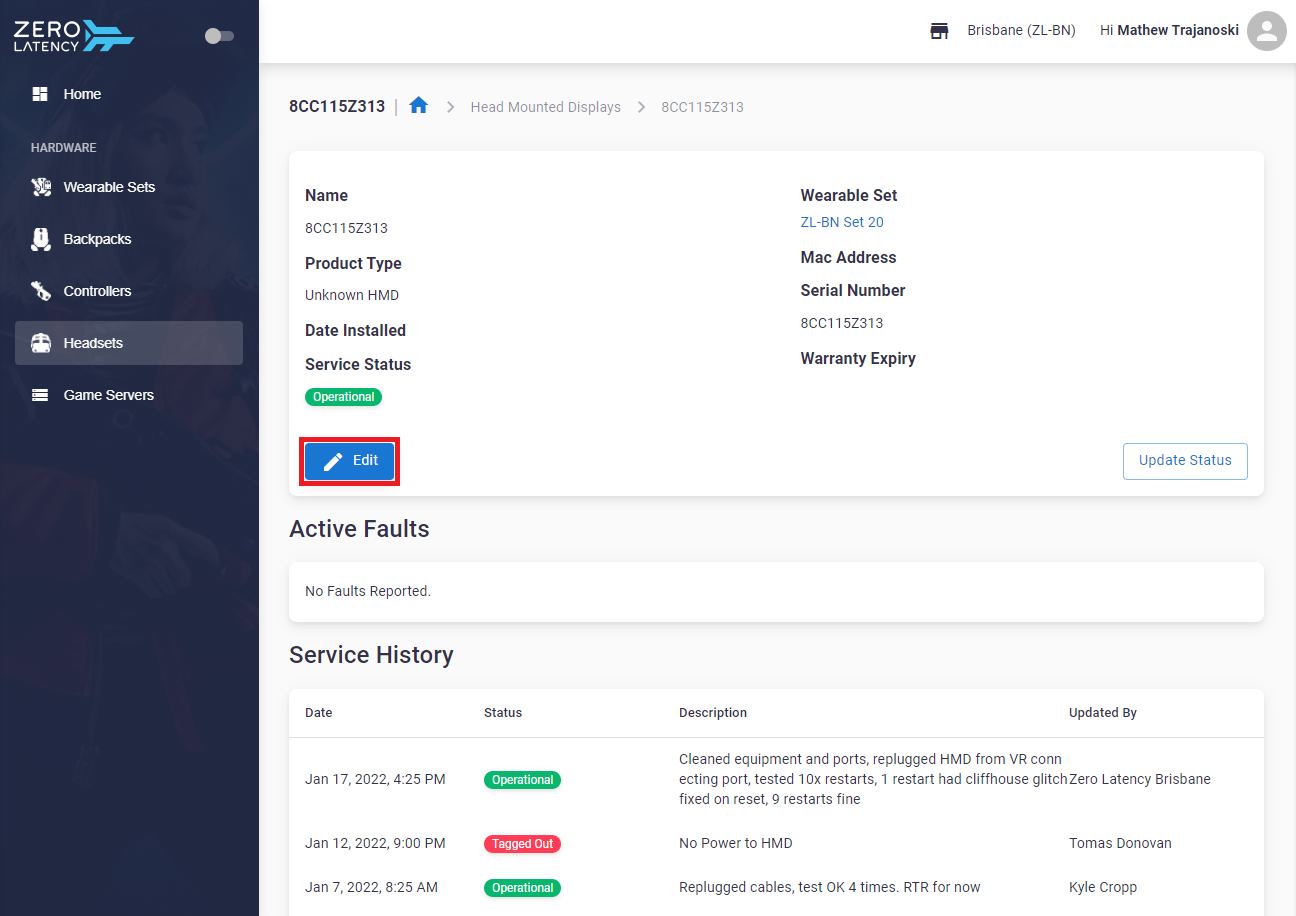
- If any details are incorrect or need to be updated this is where you can update the information

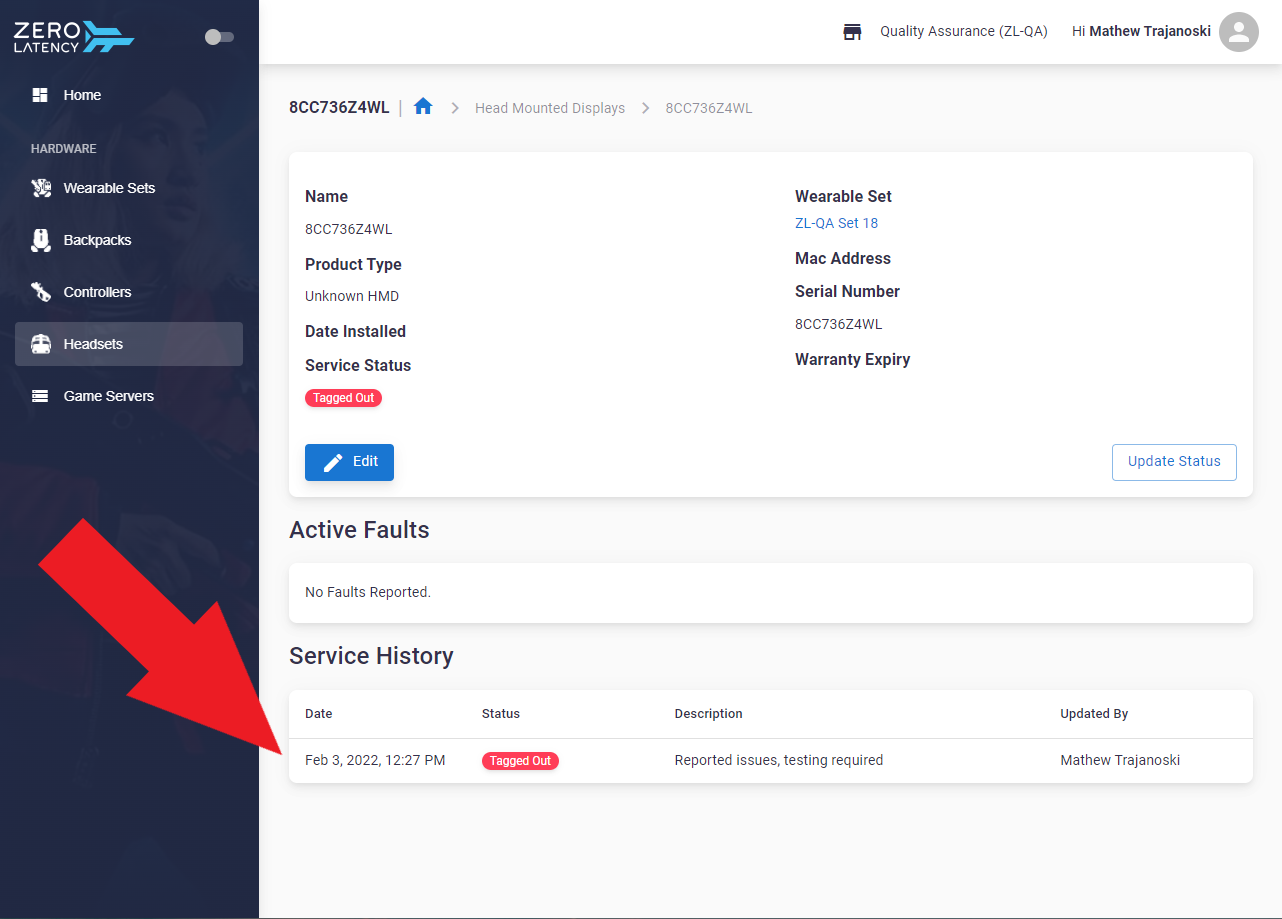
- Once the information has been submitted, the details will be displayed in the service history
How do I update a Status?
- Click "Update Status" on the details page of a headset
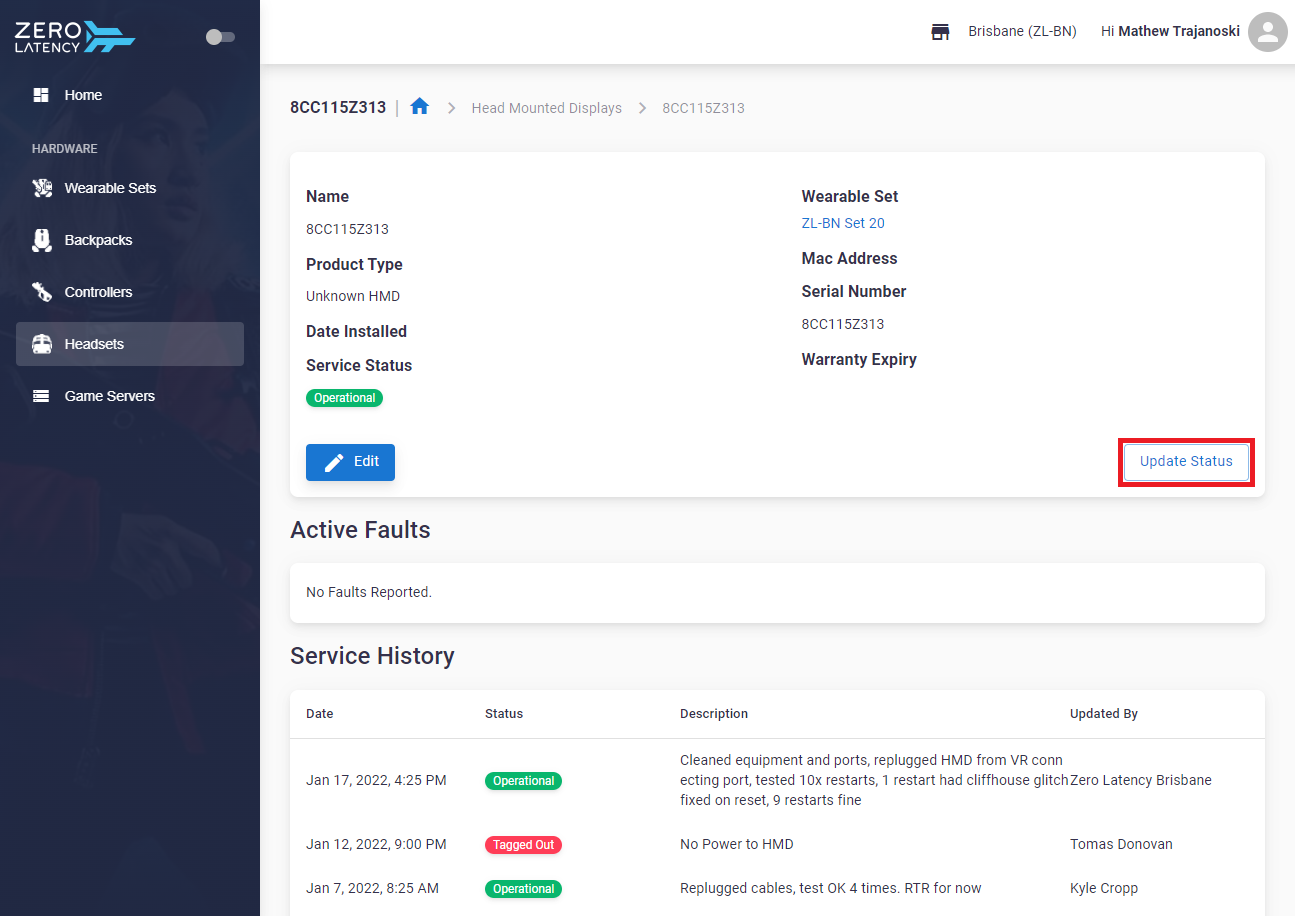
- This will allow changes to be made to the status of the device and add any required notes
- The following selections will be available to choose from:
- Operational: Active and usable in everyday operations
- Tagged Out: Not usable in operations
- Troubleshooting: Currently testing the device to verify the issue
- Warranty Claim Submitted: A case has been submitted to HP
- Decommissioned: Device cannot be resolved/fixed
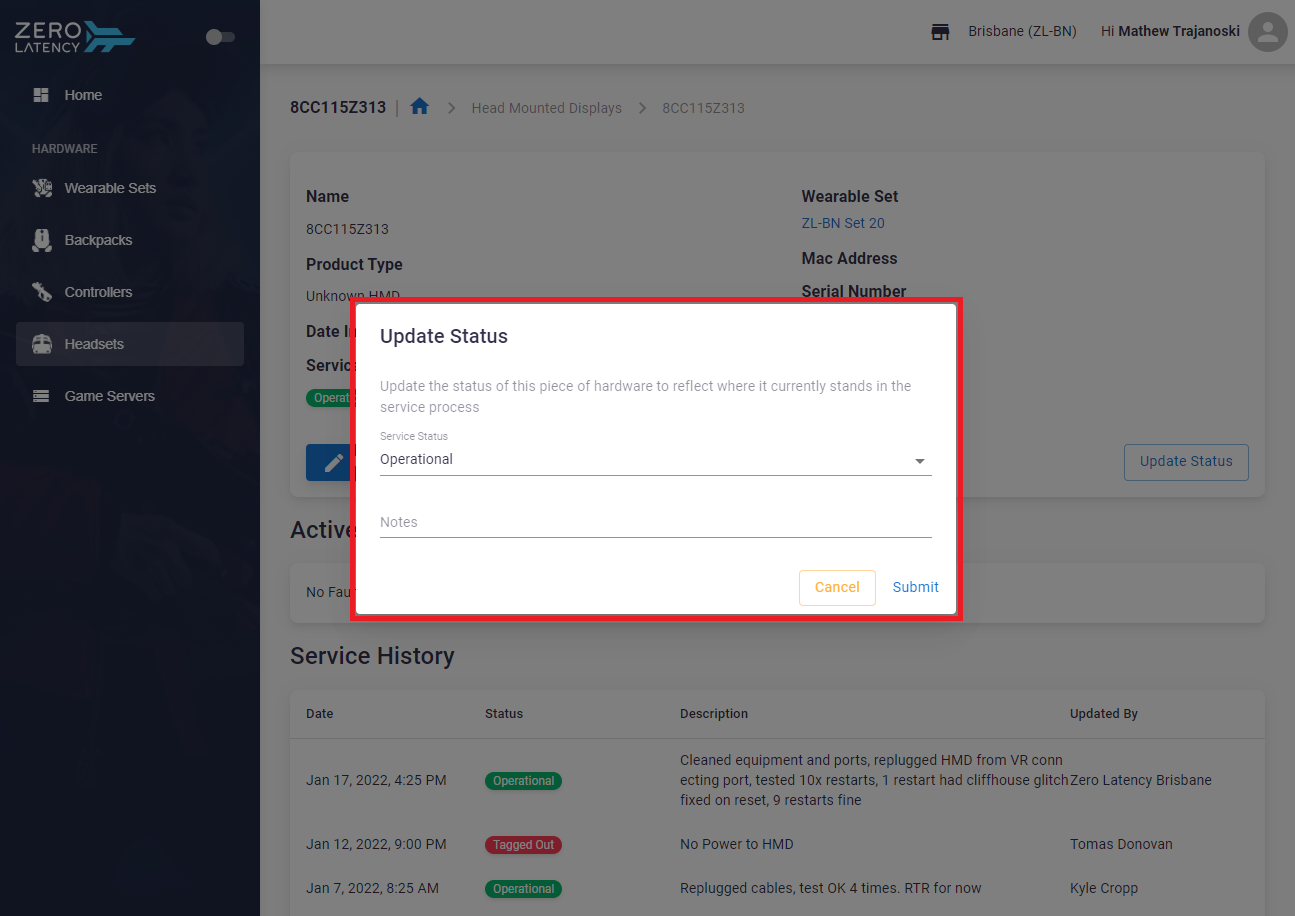
- Once the information has been submitted, the details will be displayed in the service history
Article Keywords/Phrases:

Headsets in Hardware Manager
Comments
0 comments
Article is closed for comments.