Game Servers Overview Follow
Introduction
The Game Server page of the Hardware Manager provides you with a list of all the game servers that are at your venue. The following article will give you the knowledge in updating details, adding new game servers and updating the status of each server.
How do I access the Game Servers page?
Understanding the layout of Game Servers
Understanding the layout of a Game Server
How do I access the Game Servers page?
- Log into the Hardware Manager with your Portal credentials

- On the navigation bar, select "Game Servers"
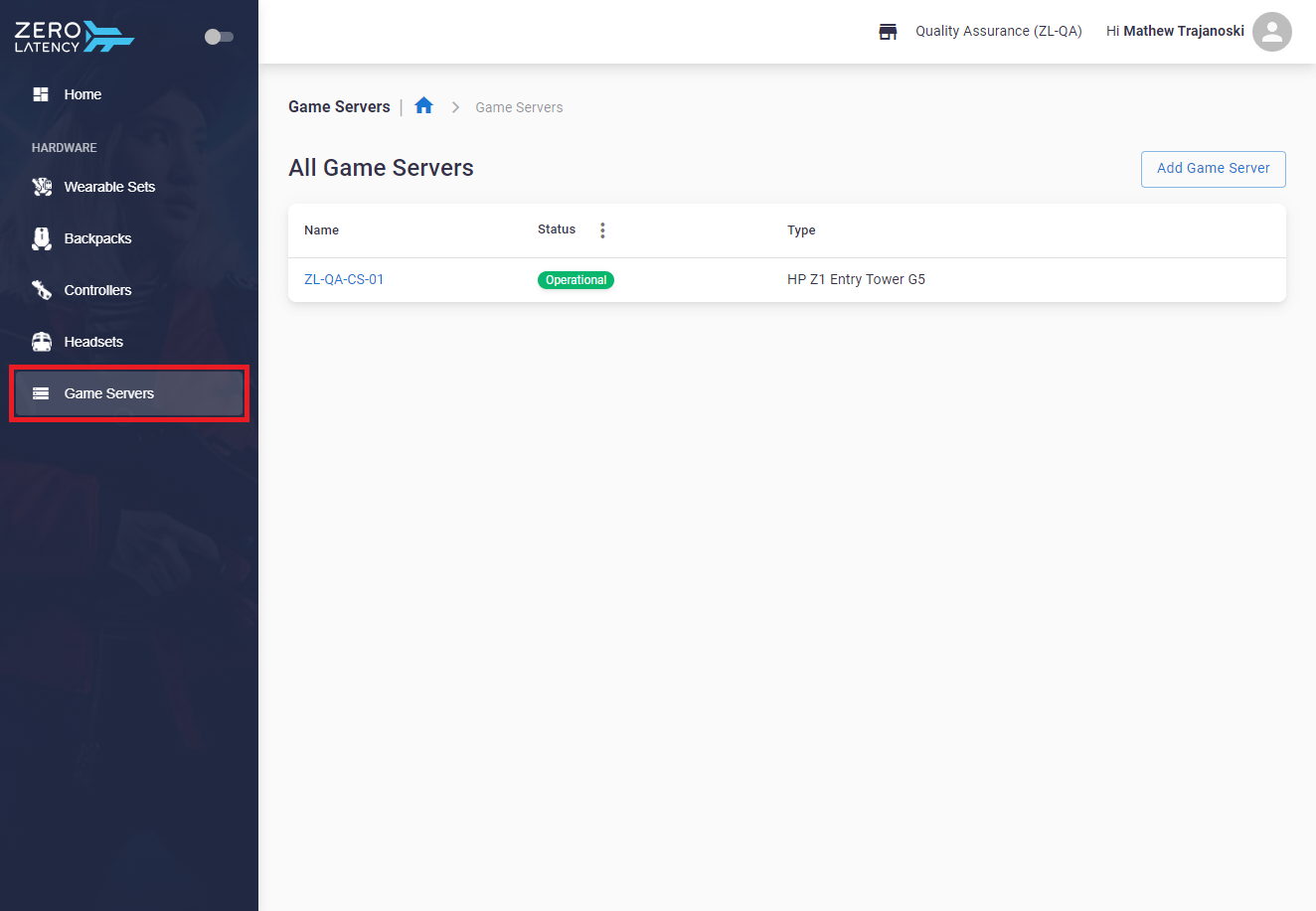
Understanding the layout of Game Servers
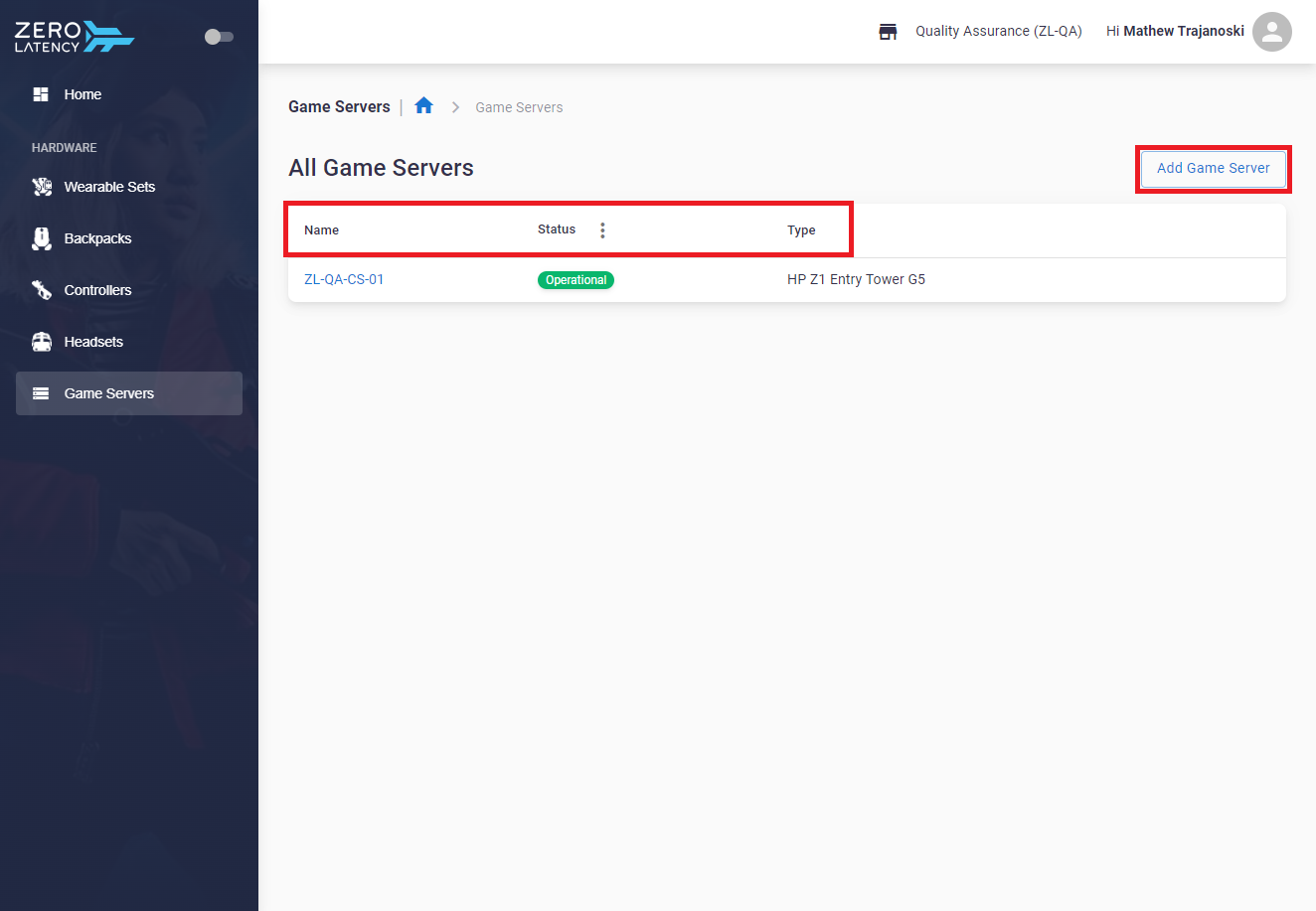
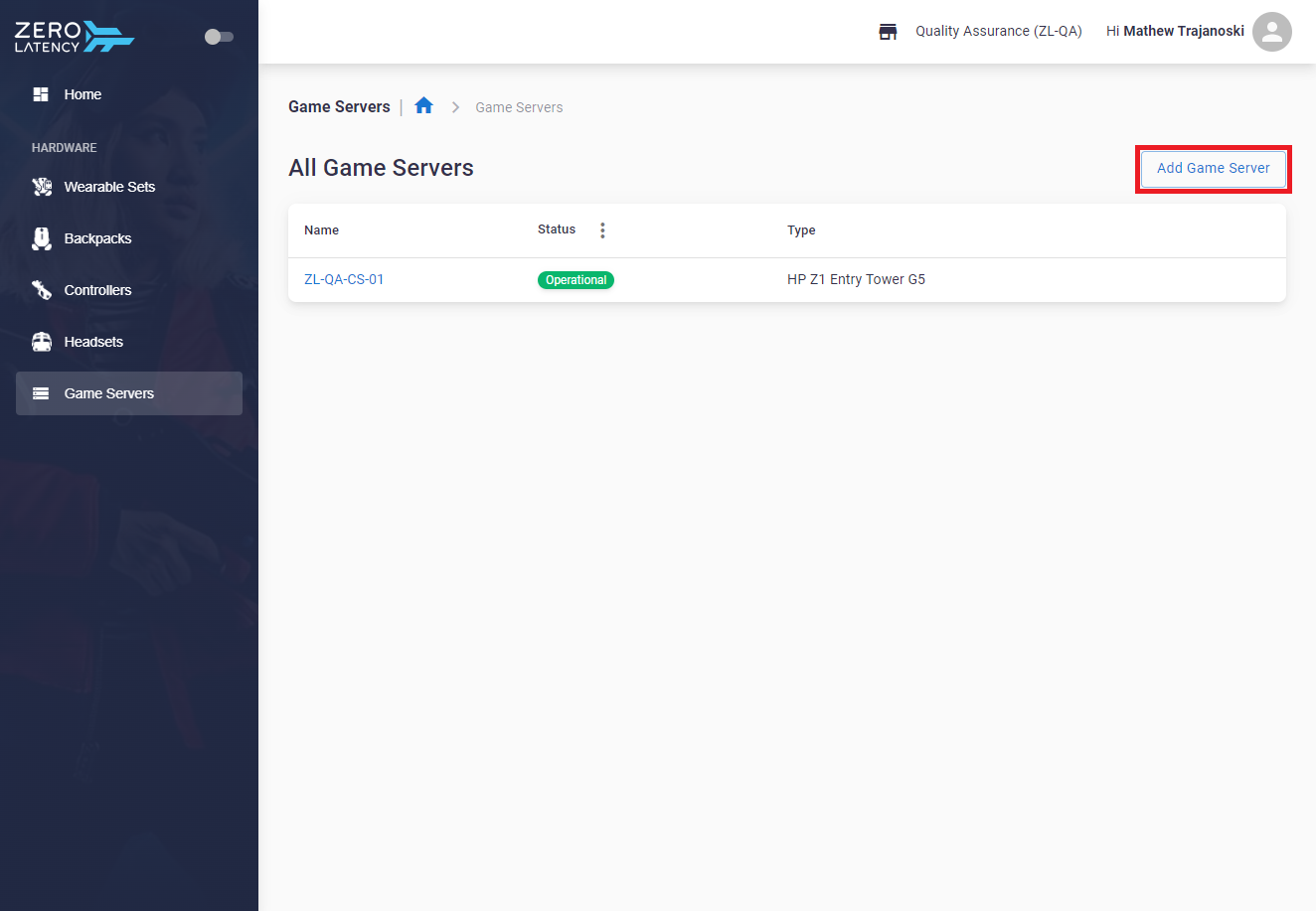
- This page displays the following information:
- Name: The name assigned to the game server
- Status: The state of each game server
- Type: The details of the game server
- Add Game Server: To add an additional game server
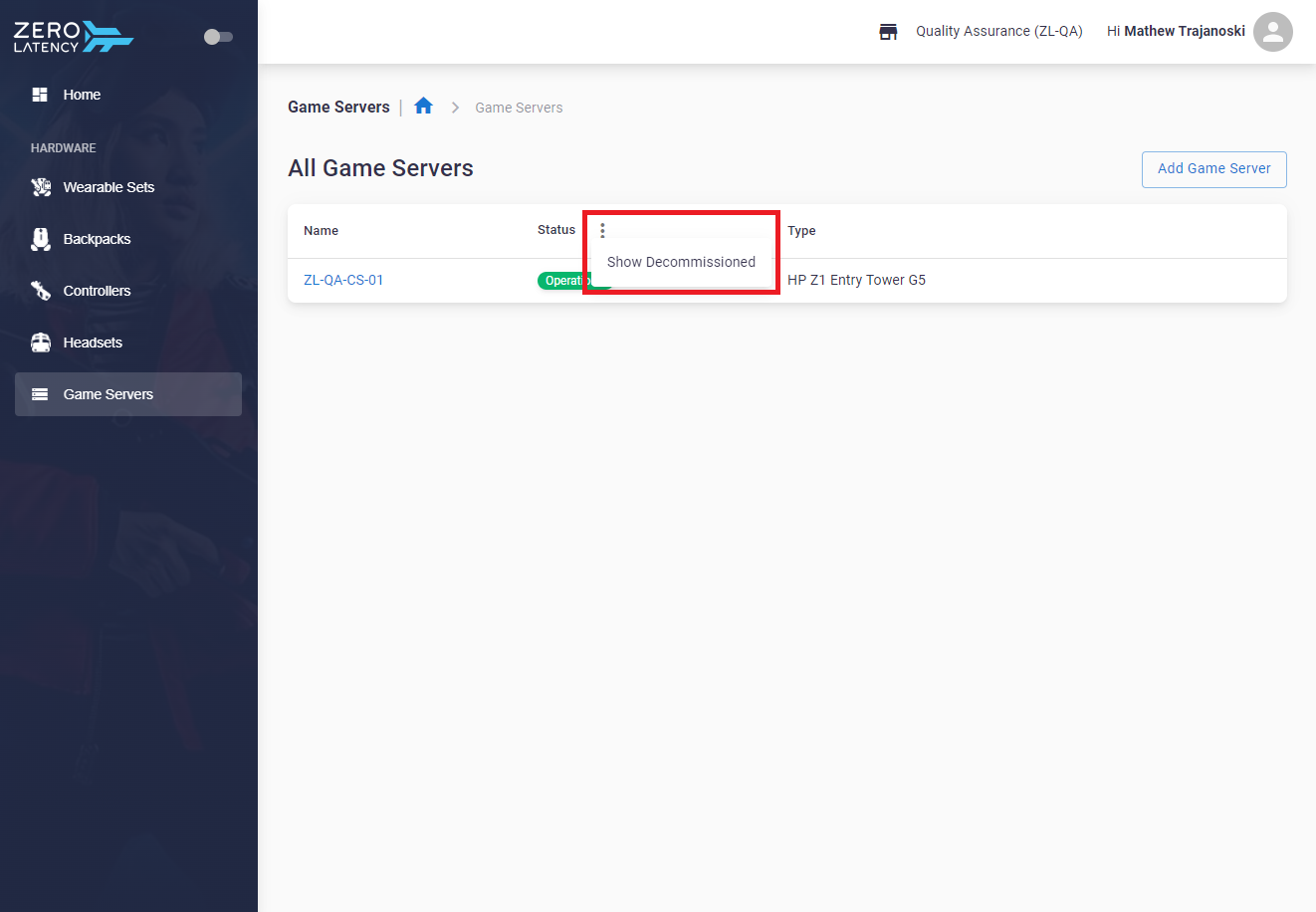
- You can view any decommissioned servers by selecting the 3 dots icon next to status
How do I view a Game Server?
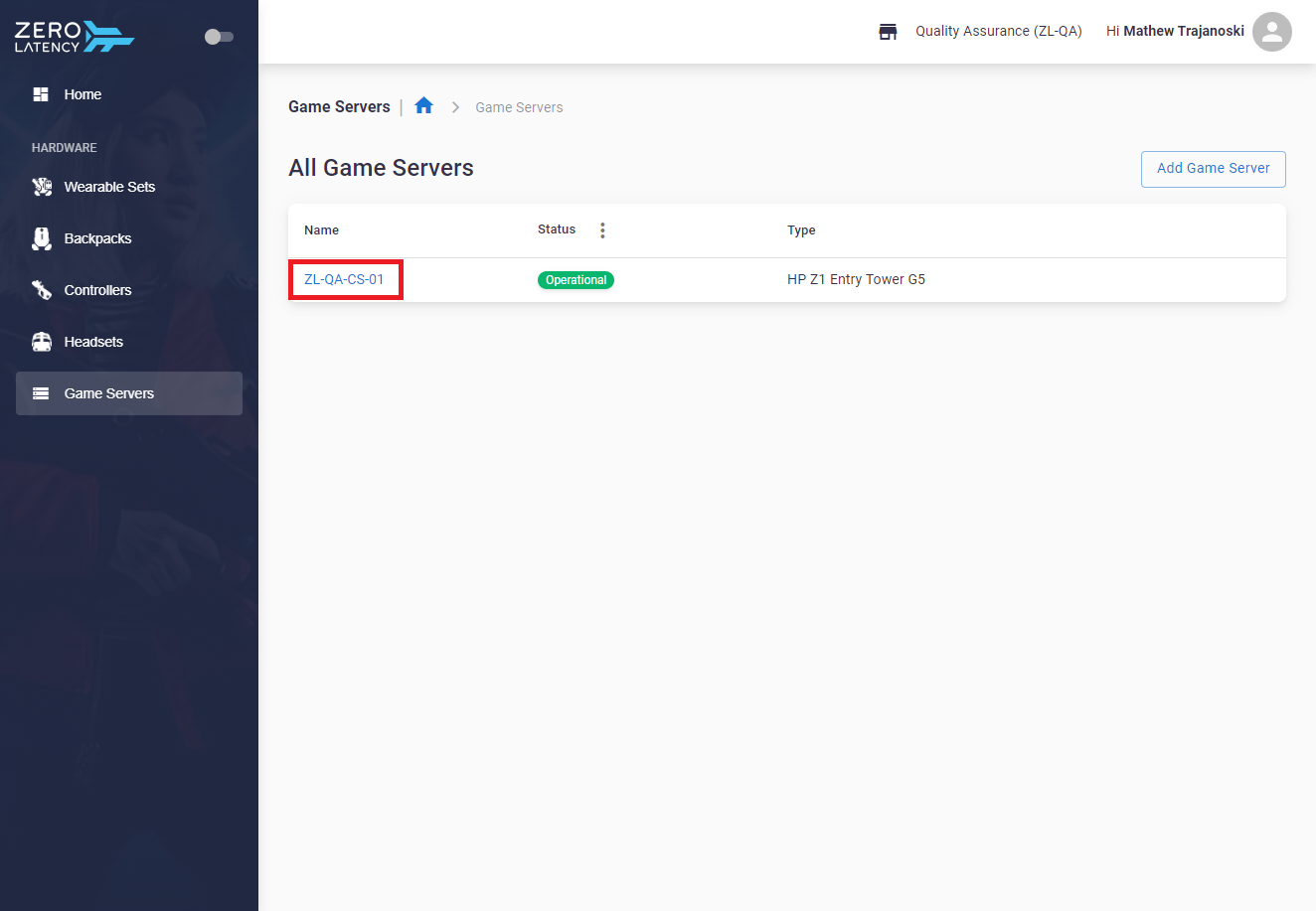
- Click on a game server to view additional information
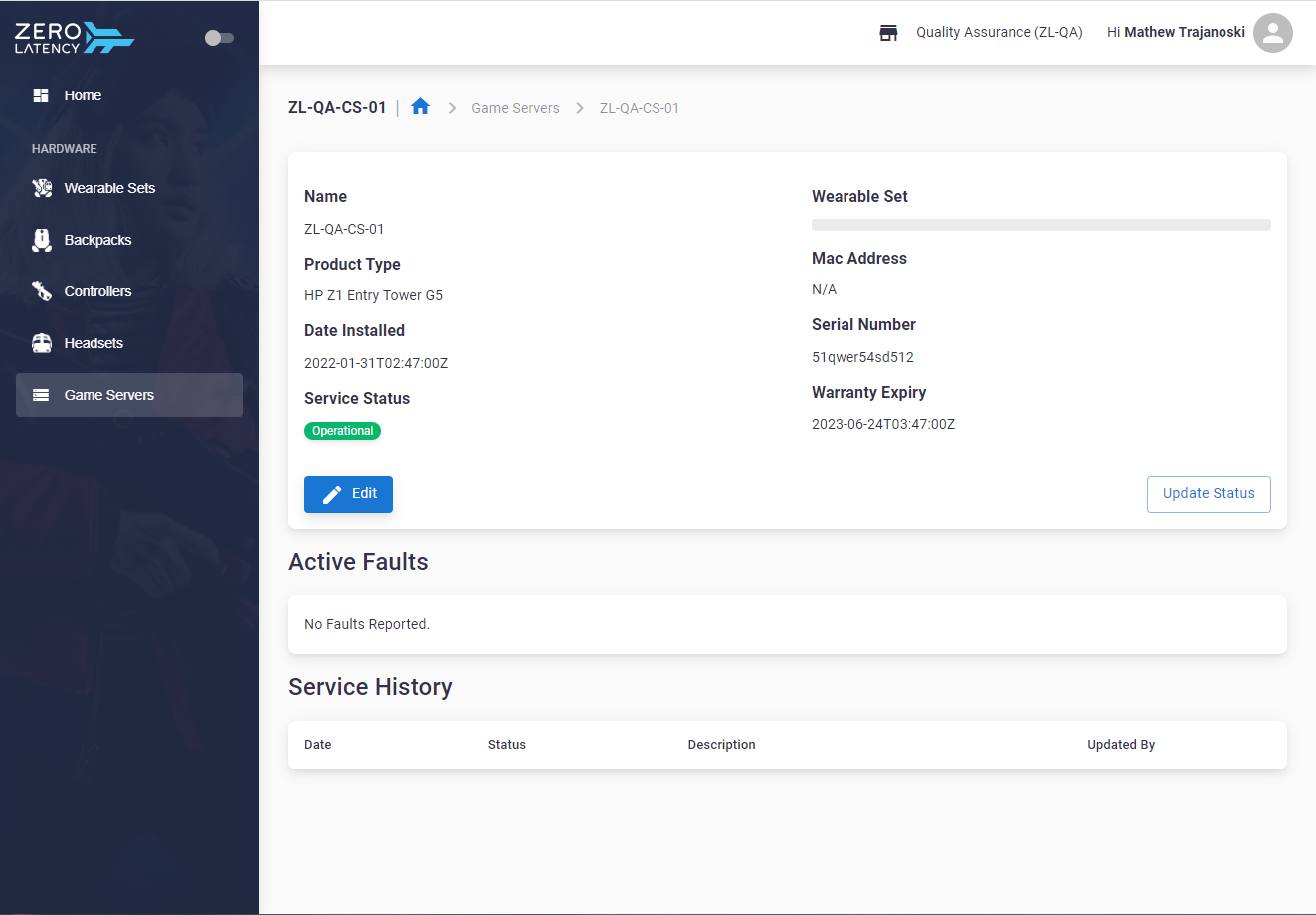
Understanding the layout of a Game Server
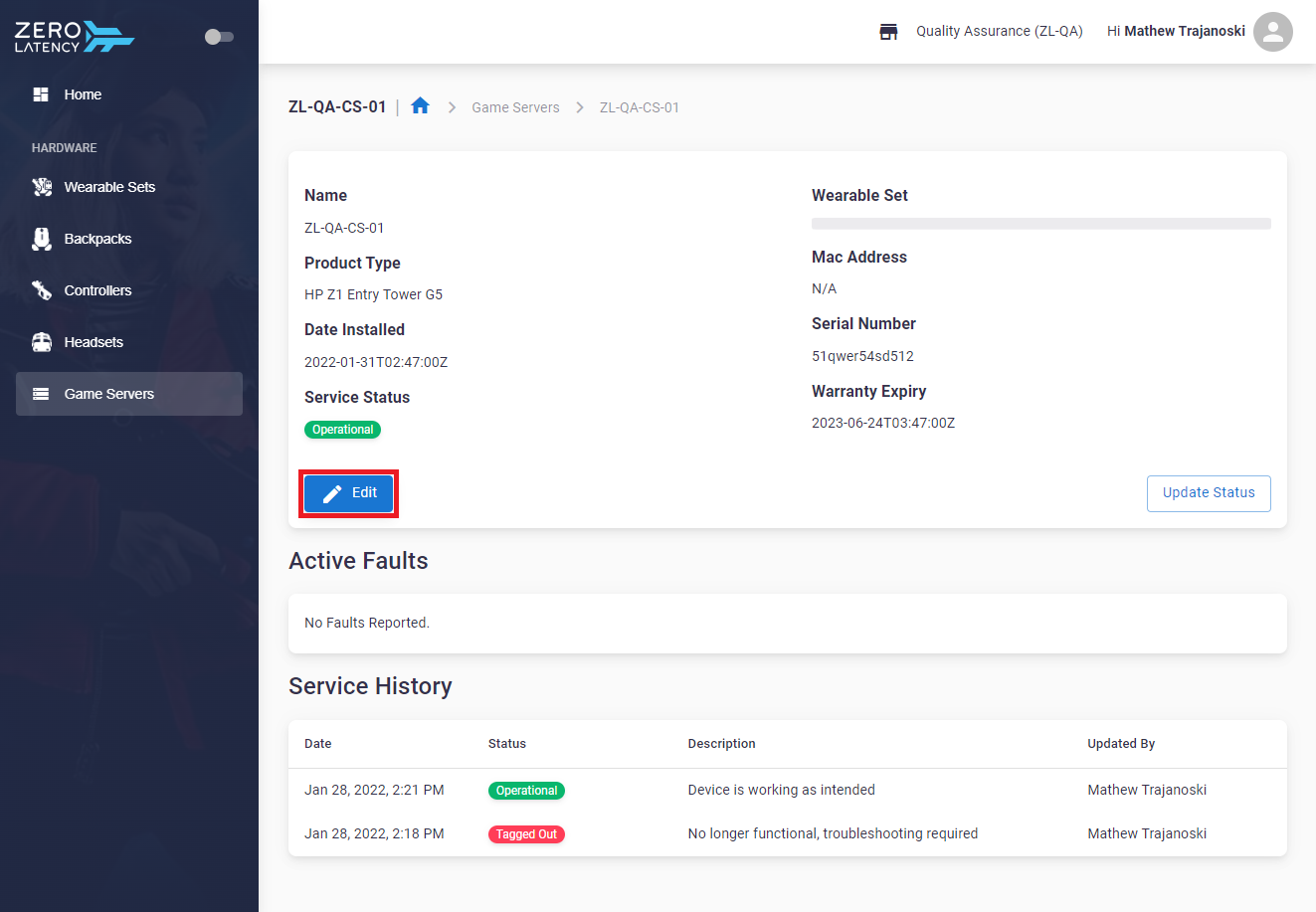
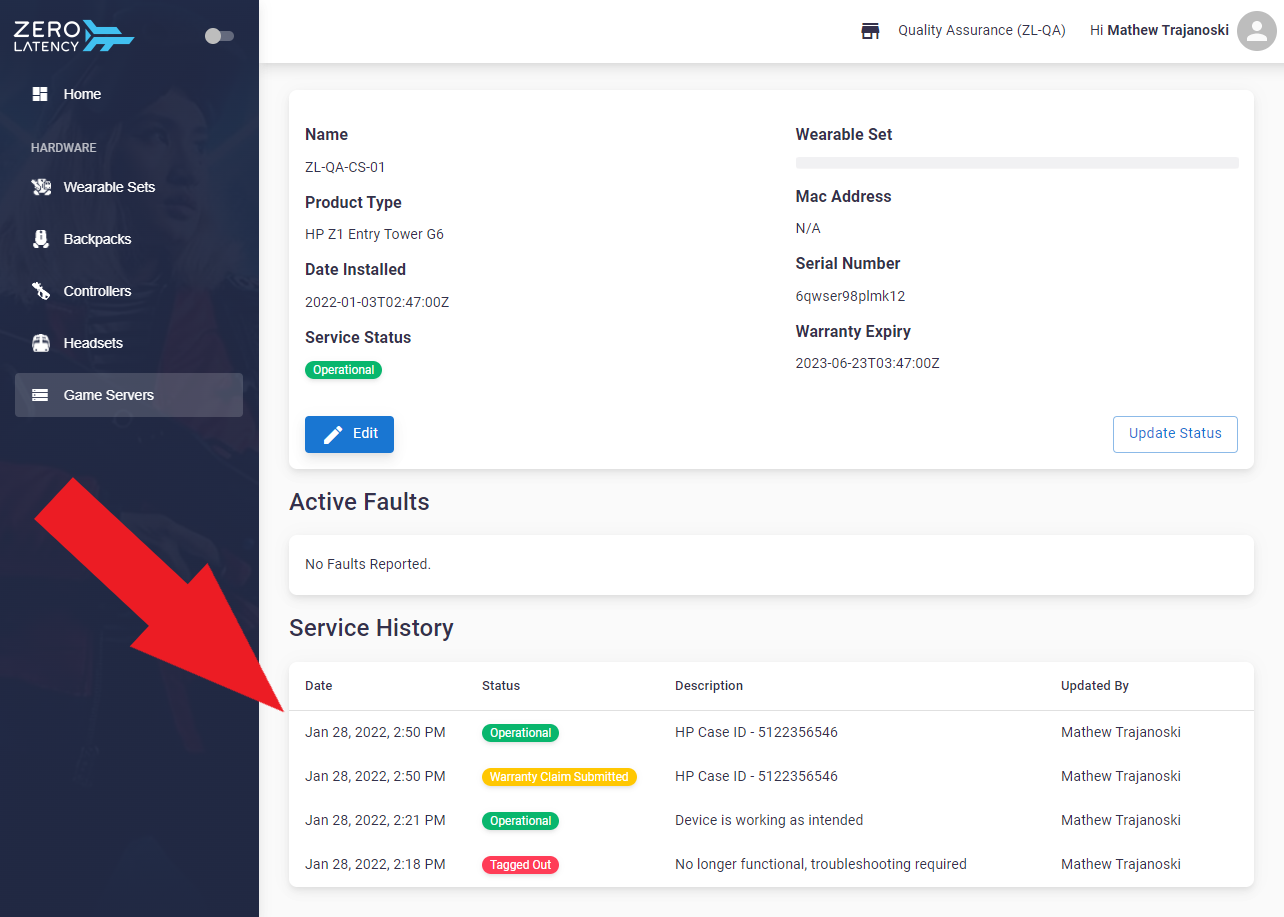
- This page displays the following information:
- Game Server: Detailed information of a game server - Further below is information on Edit and Update Status
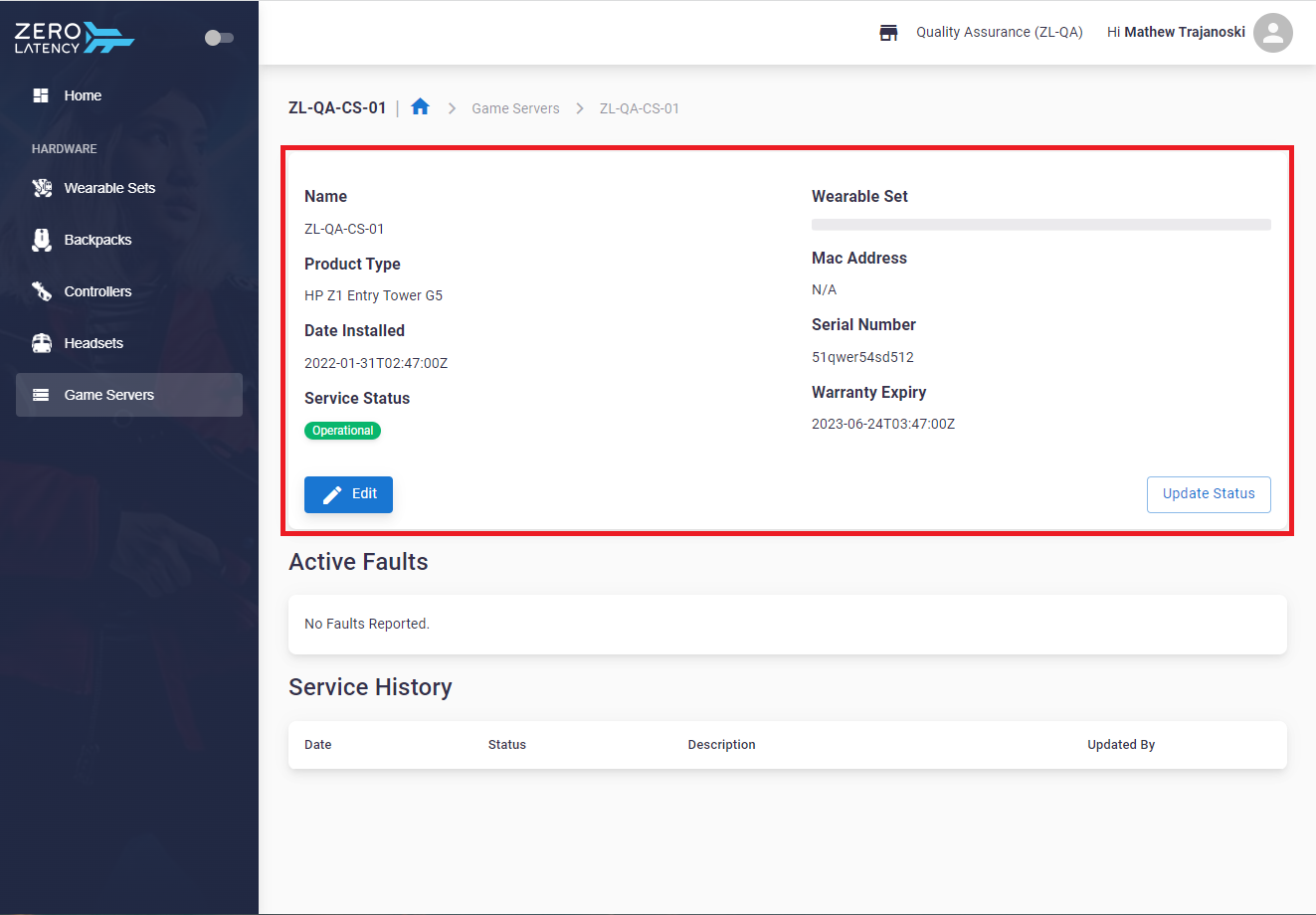
-
- Active Faults: Details of current reported issues
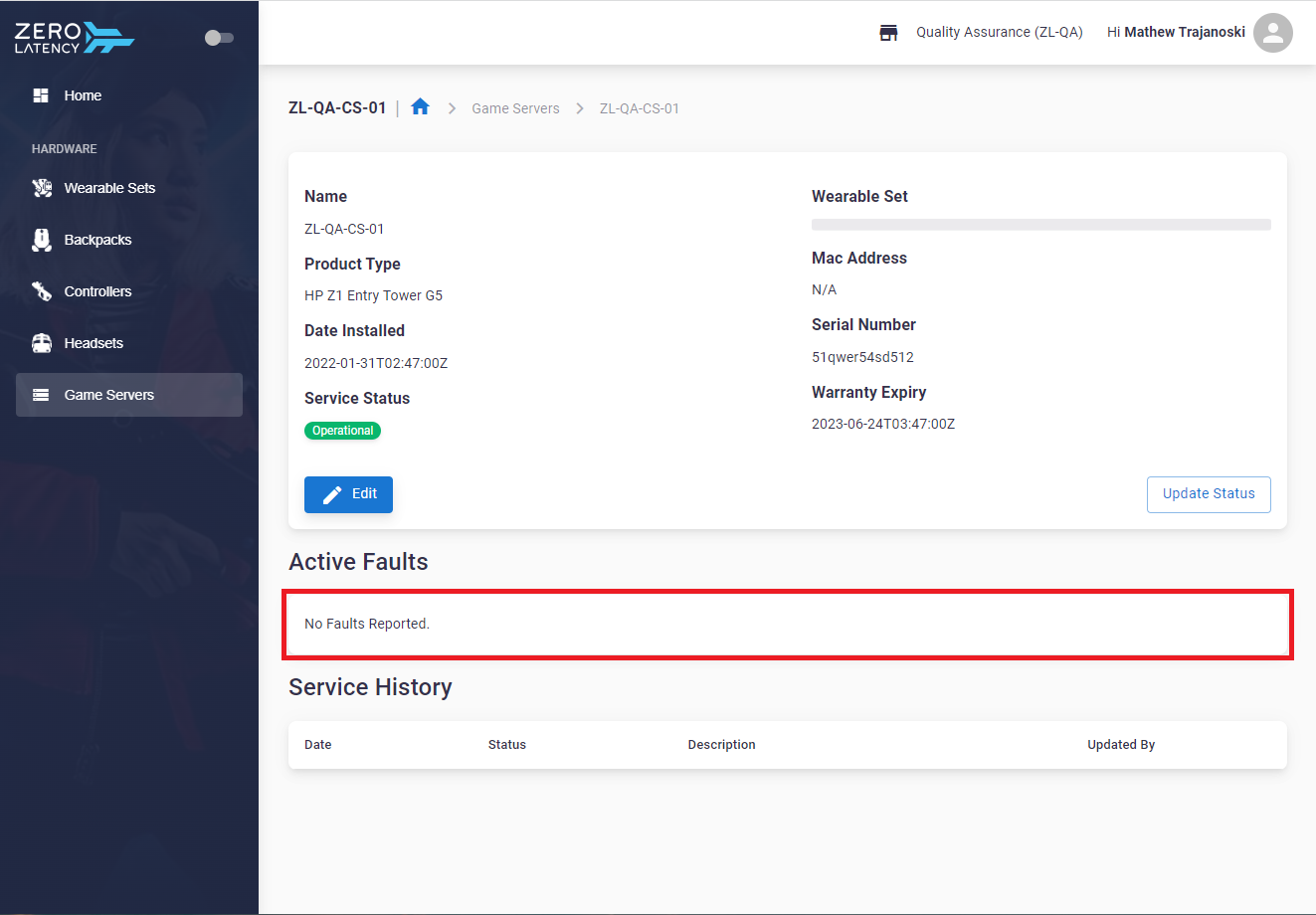
-
- Sevice History: A history of changes made to the game server
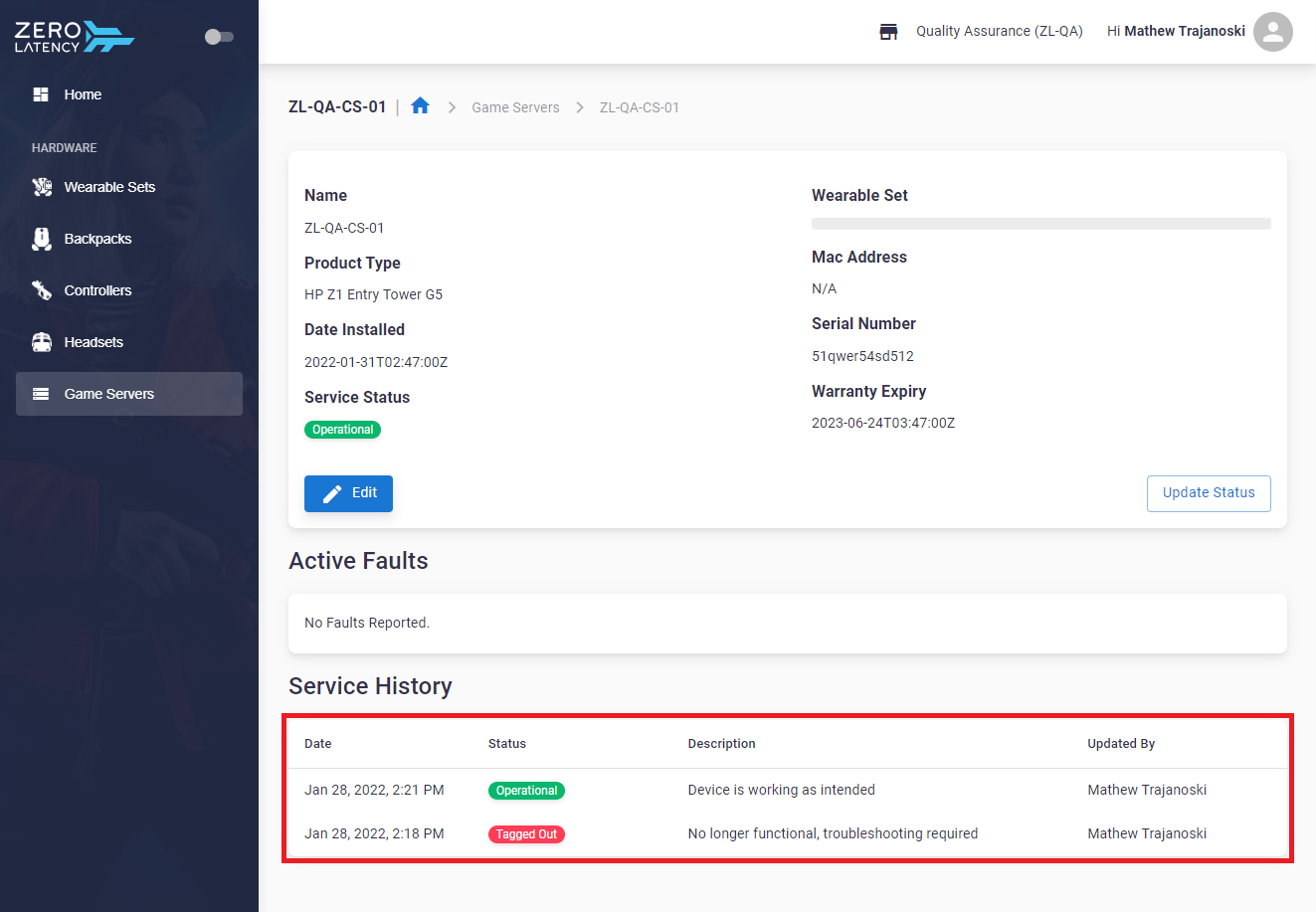
How do I add a Game Server?
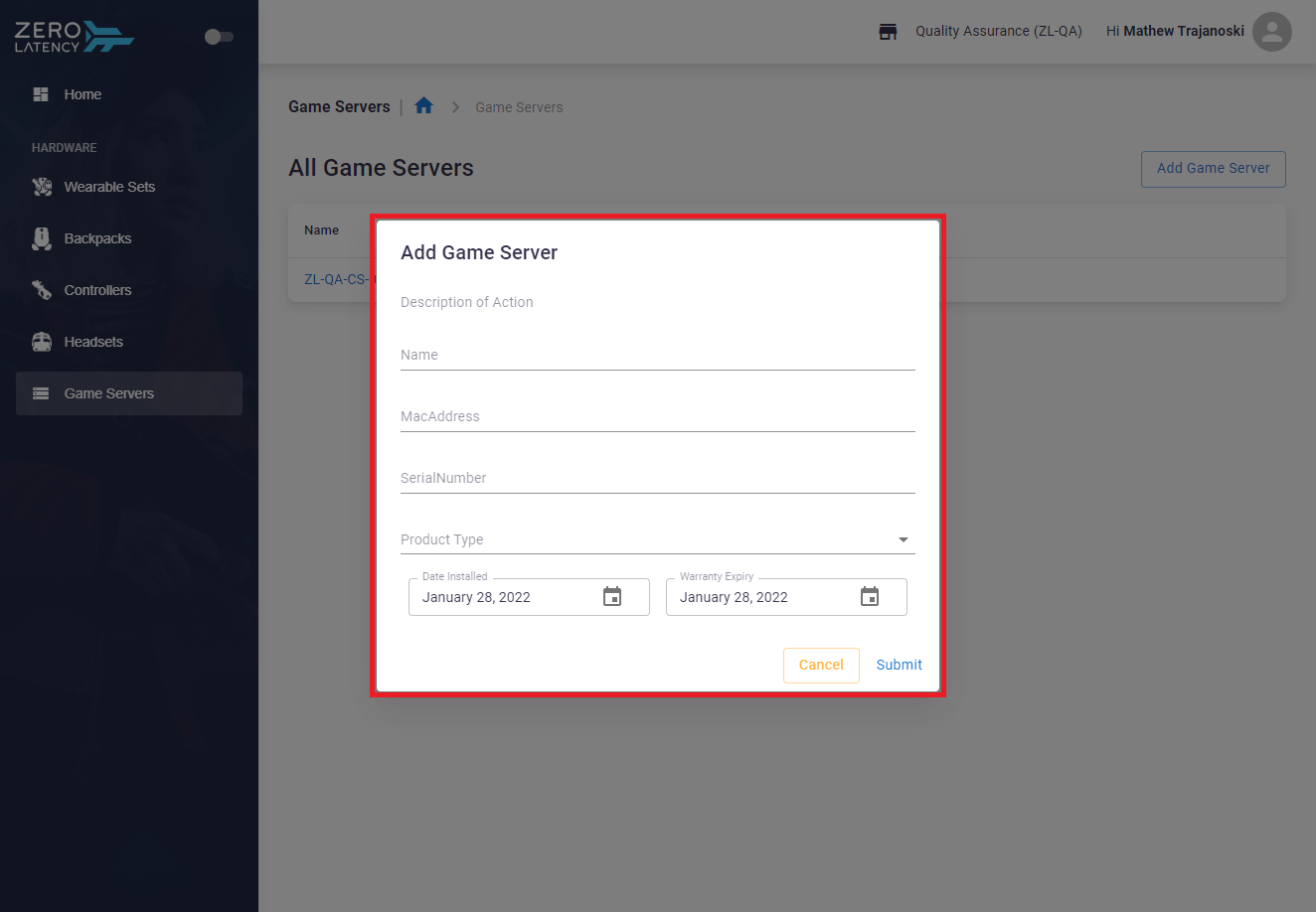
- Click "Add Game Server" on the game server page
- A window will be displayed with the following fields that are required to be completed:
- Name: The device name
- Mac Address: The mac address of the device
- Serial Number: The serial number of the device
- Product Type: The model of the device
- Date Installed: When the device was installed
- Warranty Expiry: When the warranty for the device will expire
How do I edit a Game Server?
- Click "Edit" on the details page of a game server
- If any details are incorrect or need to be updated this is where you can update the information
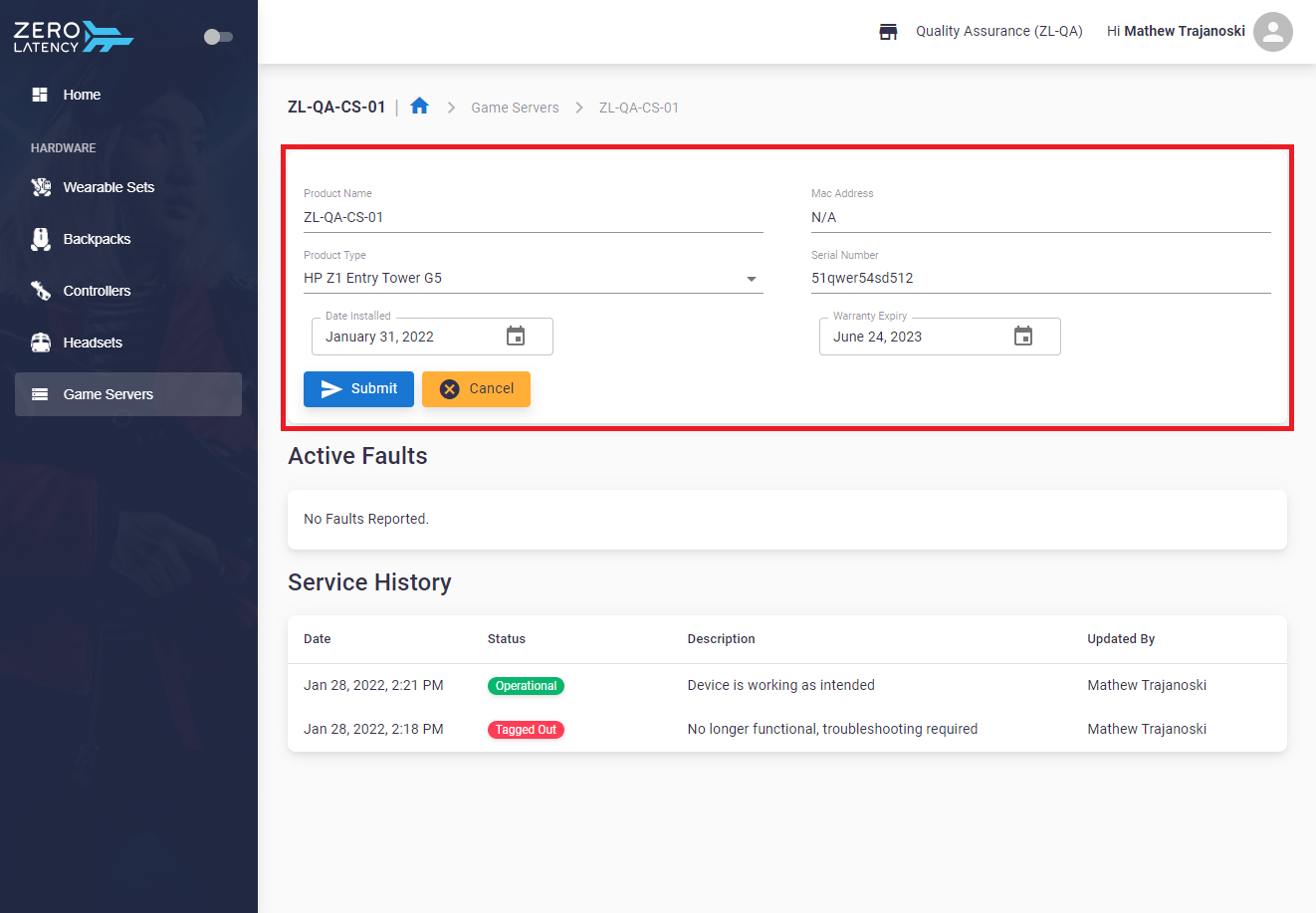
- Once the information has been submitted, the details will be displayed in the service history
How do I update a Status?
- Click "Update Status" on the details page of a game server
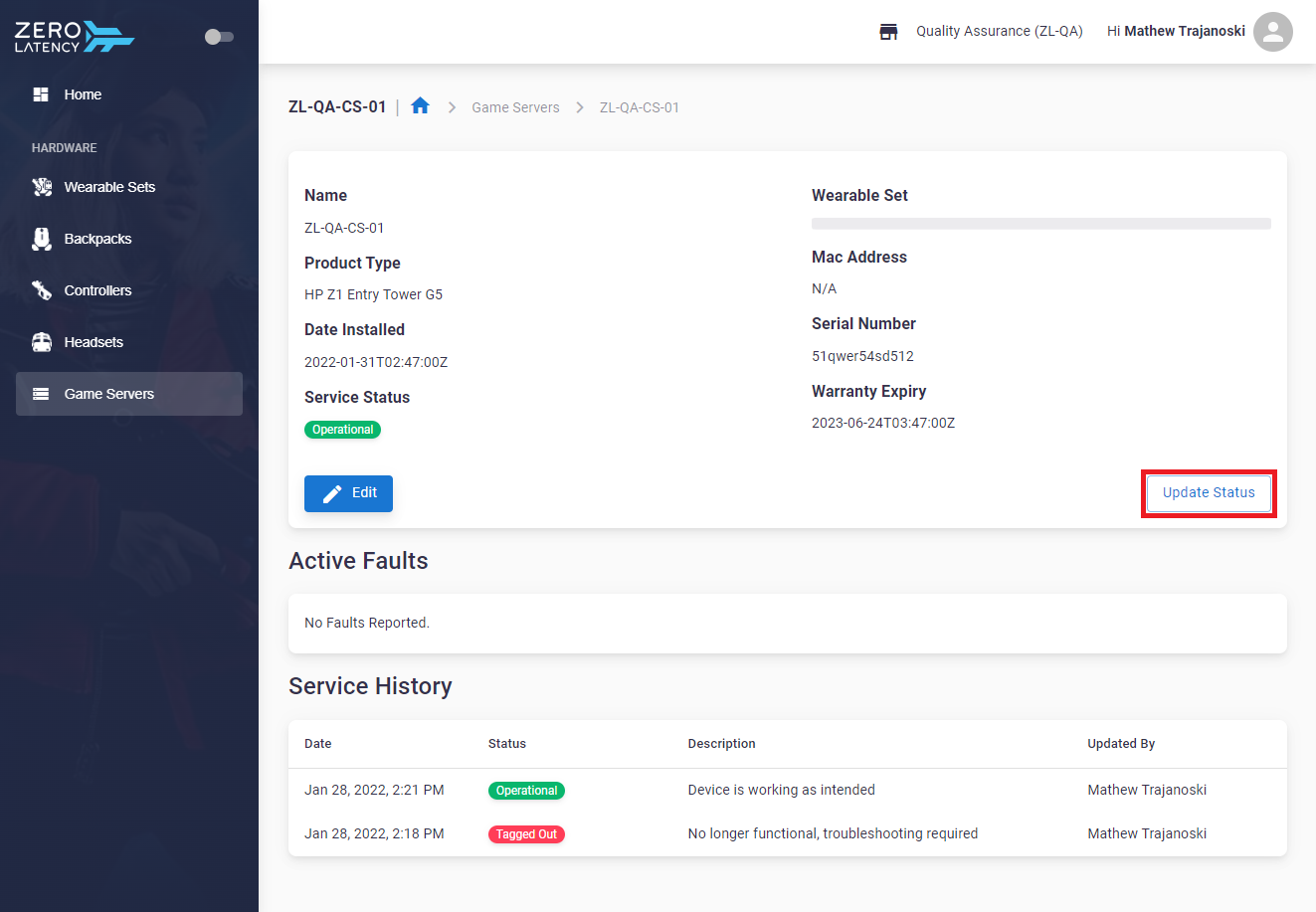
- This will allow changes to be made to the status of the device and add any required notes
- The following selections will be available to choose from:
- Operational: Active and usable in everyday operations
- Tagged Out: Not usable in operations
- Troubleshooting: Currently testing the device to verify the issue
- Warranty Claim Submitted: A case has been submitted to HP
- Decommissioned: Device cannot be resolved/fixed
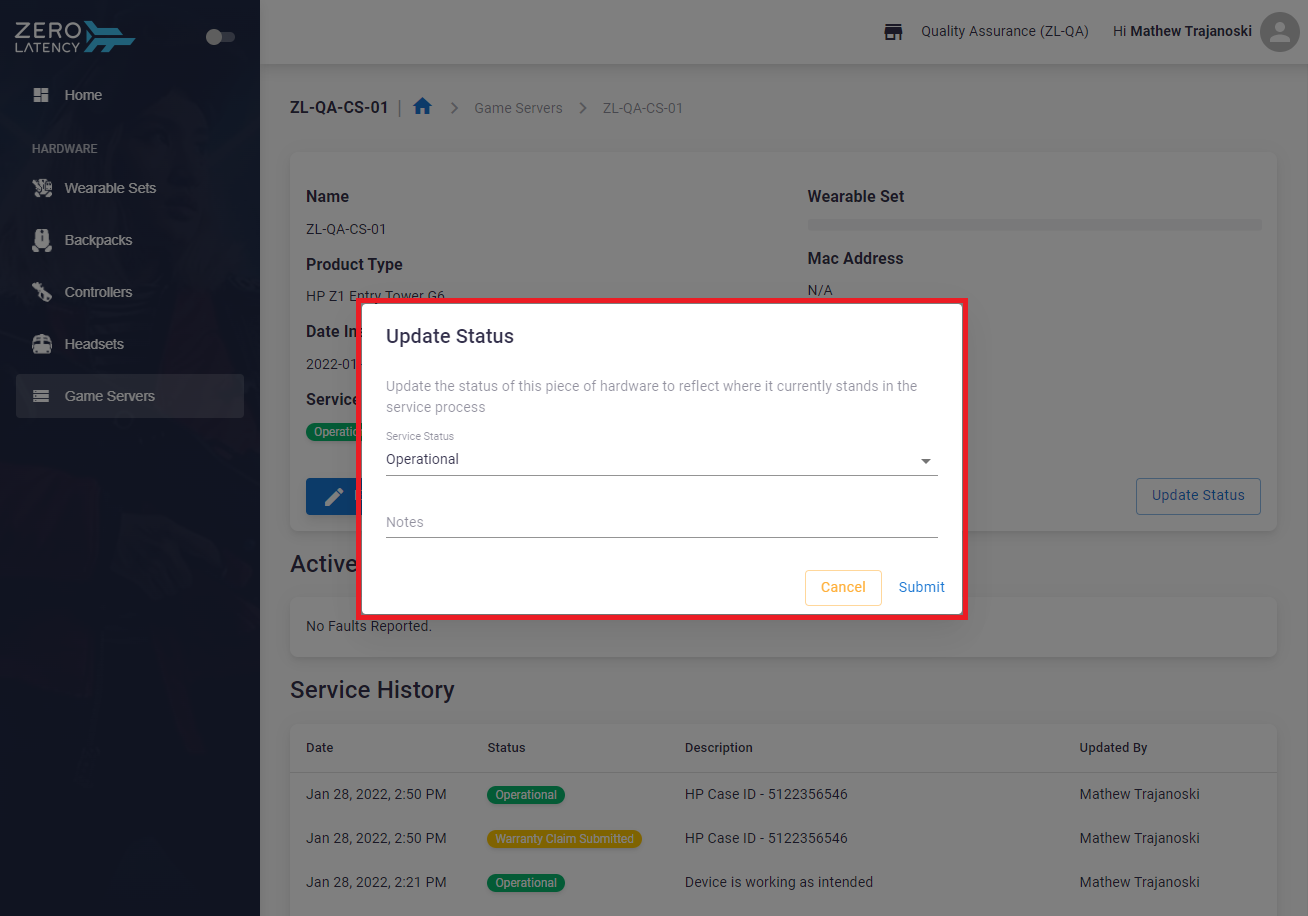
- Once the information has been submitted, the details will be displayed in the service history
Article Keywords/Phrases:

Game Servers in Hardware Manager
Comments
0 comments
Article is closed for comments.